





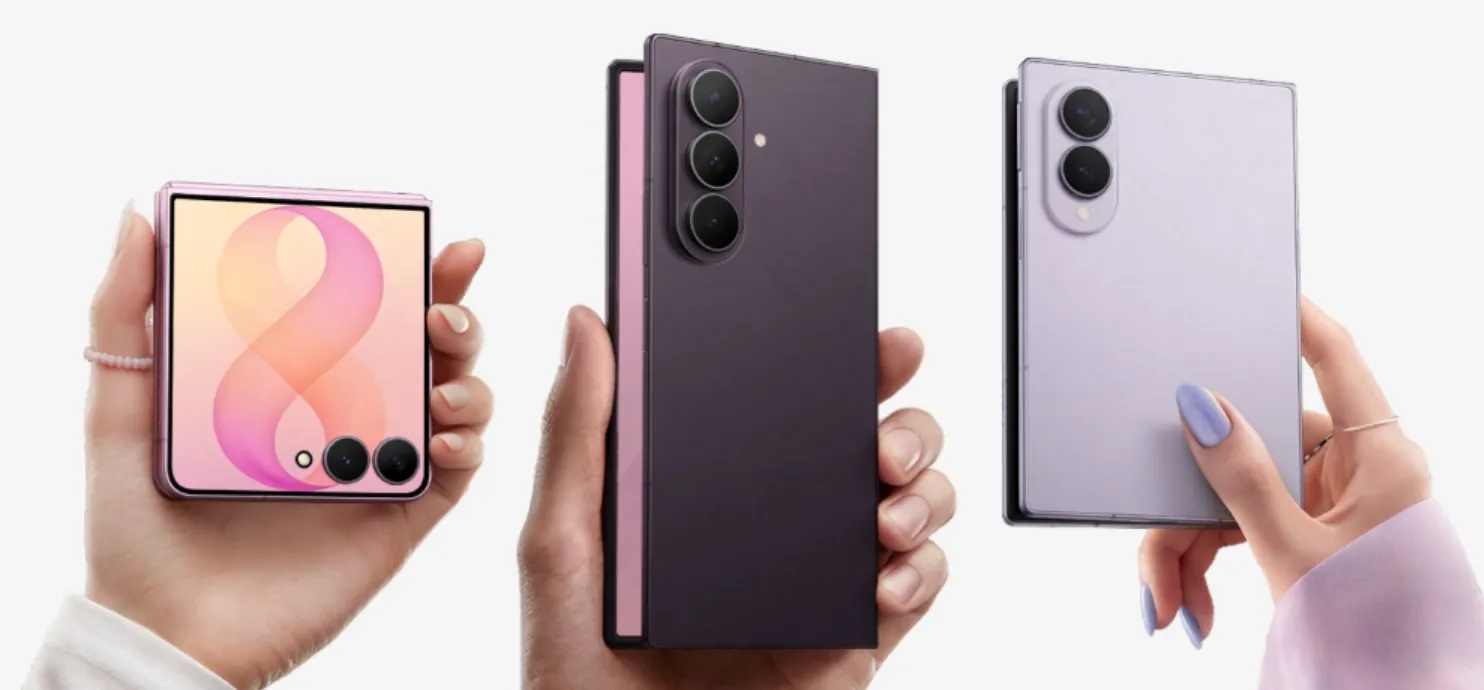
A Samsung Galaxy phone can meet every obvious requirement, Bluetooth enabled, signed into the same Google Account, and fully updated, and still refuse to show up as an option under ChromeOS's Connected devices setup.
If a Samsung Galaxy phone won't connect to a Chromebook despite checking those boxes, a sensible first step is to update both devices before assuming it's a deeper Bluetooth or account problem.
A phone can fail to show up in a few different ways, and each one points to a different fix. It might not appear under Connected devices at all, which points to a connection or enrollment problem. It might appear but be missing one feature, like app streaming or phone unlock, which means the basic connection may be working. Or it might have worked fine before and stopped after an update. The sections below are organized around those three situations.
How to connect a Samsung Galaxy phone to a Chromebook: check versions first
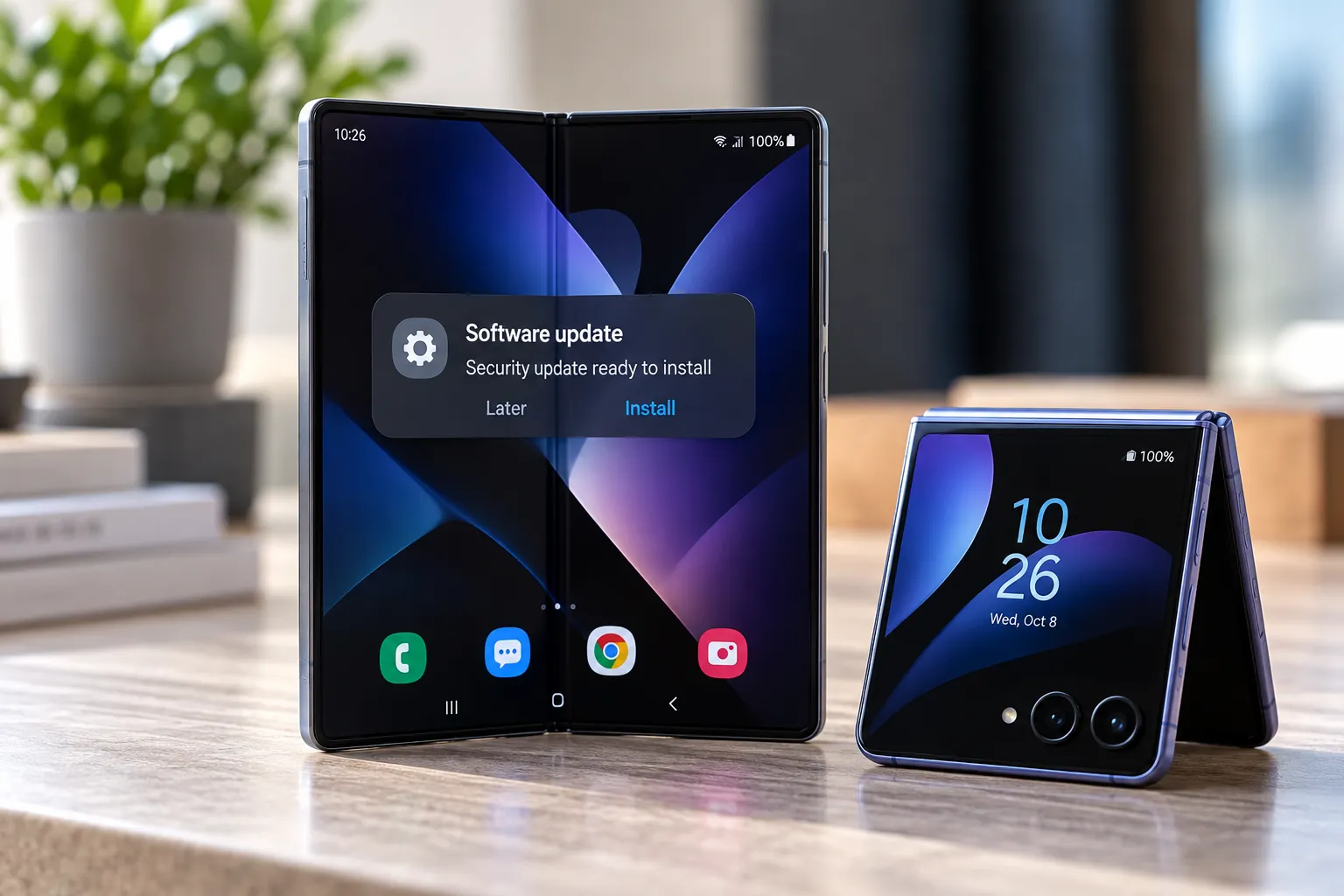
A sensible first check is to update both devices: Settings > About ChromeOS > Check for updates on the Chromebook, and Settings > Software update > Download and install on the Galaxy phone. Either one can trigger a restart or require free storage, so leave a few minutes rather than expecting an instant finish.
Google's current Phone Hub requirements call for ChromeOS M89 or later and Android 5.1 or later. Google's broader Android phone connection documentation lists ChromeOS 71 or later and Android 6 or later for connected-phone features such as notifications, photos, messaging, network sharing, and phone-based unlocking.
Google's current troubleshooting guidance also says to make sure the phone has the latest Android and Google Play Services updates and that both devices use the same Google Account. Bluetooth needs to be enabled for Phone Hub setup.
Updating doesn't guarantee a fix. In an April 2024 Google Chromebook Community thread, users reported Phone Hub disappearing or failing to reconnect around an update cycle. One affected Chromebook showed Device Sync in red with a last-sync date weeks old. A Product Expert described the problem at the time as a known issue being investigated.
That incident doesn't establish that an update is responsible for a connection problem today, but it does show that Phone Hub enrollment can fail independently of basic Bluetooth pairing.
If the phone shows up after updating both devices, finish setup as normal. If it doesn't, the next step is confirming whether it's actually missing or simply failing during setup.
Confirm whether the Galaxy phone is actually missing from Connected devices
Go to Settings > Connected devices and look for Android phone. If setup is available, select Set up and follow the prompts.
Google's current troubleshooting instructions provide a few useful checks if the phone isn't available. Confirm that Android and Google Play Services are current, make sure the same Google Account is signed in on both devices, and check whether more than one entry for the phone appears. Google says to try the first entry and, if it doesn't connect after a few minutes, forget it and try another.
Working Bluetooth or Quick Share doesn't prove that Phone Hub enrollment succeeded. A user running ChromeOS 126 and Android 12 reported having Bluetooth, Wi-Fi, the same Google Account, and working Quick Share while still receiving a "no available devices" message in a December 2024 Chromebook Community thread.
Shared Wi-Fi also isn't a general Phone Hub setup requirement in Google's current documentation. It becomes relevant for specific features such as app streaming, which requires both devices to share a local network unless Instant Tethering is used.
If the phone appears under Connected devices but one feature isn't working, troubleshoot that feature before trying to rebuild the entire connection.
When the phone is listed but a feature still won't work
A phone can appear under Connected devices while a particular Phone Hub feature remains unavailable.
App streaming is the clearest example. Google's current support list includes Pixel 4a and later models running Android 13 or later, Nothing Phone (1) and Phone (2), and select Xiaomi phones running Android 13 or later. Samsung Galaxy phones aren't on Google's current supported-device list for Phone Hub app streaming.
App streaming also has additional network requirements. The Chromebook and phone normally need to be on the same Wi-Fi network and near each other, although Google says Instant Tethering can provide the required local network when the current Wi-Fi environment doesn't support streaming.
Smart Lock has its own requirements. Google's current Smart Lock documentation requires a connected Android phone, an internet connection on the Chromebook, and the same Google Account on both devices. The phone must have Android L-MR1 or later, Bluetooth enabled, a screen lock configured, and be unlocked.
If one of those features fails while the Galaxy phone remains listed under Connected devices, the basic phone connection isn't necessarily broken.
The CryptAuth dialer sequence: an unsupported last resort
The next workaround isn't part of Google's official Phone Hub troubleshooting documentation. It comes from Chromebook Community posts and Product Expert recommendations, so treat it as an unofficial last resort rather than a normal setup step.
On the Galaxy phone, enter *#*#2884936#*#* in a compatible Phone app. Community reports describe this as forcing a backend CryptAuth enrollment. If it works, a message similar to "Forcing CryptAuth enrollment" should appear.
Then, on the Chromebook, open chrome://proximity-auth and select Enroll, followed by Sync. Return to Settings > Connected devices afterward and check whether the phone has appeared.
Results have been inconsistent. A 2024 poster reported restoring connectivity between a Galaxy S24 Plus and Lenovo Duet 5 after using Google's Phone app and the CryptAuth sequence. Other users in the same thread reported that similar troubleshooting didn't solve their connection problems.
The workaround hasn't disappeared entirely from community troubleshooting. A Chromebook Product Expert recommended the same CryptAuth sequence in a May 2026 Chromebook Community thread, while explicitly warning that it might not work on every phone.
Avoid changing experimental ChromeOS flags as a routine fix. A 2024 workaround involved enabling #allow-cross-device-feature-suite, but Chromium describes that flag as a developer option for enabling cross-device functionality on platforms where it is normally disabled because of hardware support. It isn't part of Google's current consumer troubleshooting instructions.
Likewise, don't switch to the ChromeOS Beta channel solely to troubleshoot Phone Hub based on old community posts. Those steps targeted a specific 2024 problem and aren't evidence of a current universal fix.
What to do now
Update the Chromebook, Android, and Google Play Services first. Confirm that both devices use the same Google Account and that Bluetooth is enabled, then check Settings > Connected devices directly rather than treating working Bluetooth or Quick Share as proof that Phone Hub is connected.
If the phone appears, troubleshoot the individual feature. App streaming and Smart Lock have requirements beyond simply connecting a phone.
If the Galaxy phone doesn't appear at all after Google's documented troubleshooting steps, the CryptAuth sequence remains an unofficial option that Chromebook Community Product Experts were still suggesting in 2026. Try it with the understanding that Google doesn't include it in its official Phone Hub instructions and that community reports show mixed results.
If nothing helps, send feedback directly from the Chromebook with Alt + Shift + I. Google specifically asks users to include details and reproduction steps and allows diagnostic data and screenshots to be attached. Those reports give the ChromeOS team information it can use to investigate connection failures that ordinary troubleshooting doesn't resolve.


Comments
Be the first, drop a comment!