



How to rearrange Samsung Quick Panel buttons in One UI 7
A Galaxy tablet owner asked Samsung Community how to reorder "the first 6 buttons" on their Quick Panel, and the reply pointed to a setting Samsung doesn't advertise anywhere obvious: Edit top quick settings (Samsung Community). It's the clearest documented way to rearrange Samsung Quick Panel buttons on One UI 7, specifically the row of toggles that shows up after a single swipe down.
That thread, posted last year, is still the best-documented account of this feature. But it comes from one tablet owner's community post, not from Samsung's own support documentation or testing across multiple devices. Whether every Galaxy phone and tablet exposes the same menu with the same number of buttons remains an open question.
This guide walks through the steps that tablet owner described, covers the separate panel-style setting that trips people up before they even get to button order, and flags exactly where the evidence runs out.
Why your Quick Panel looks different in One UI 7
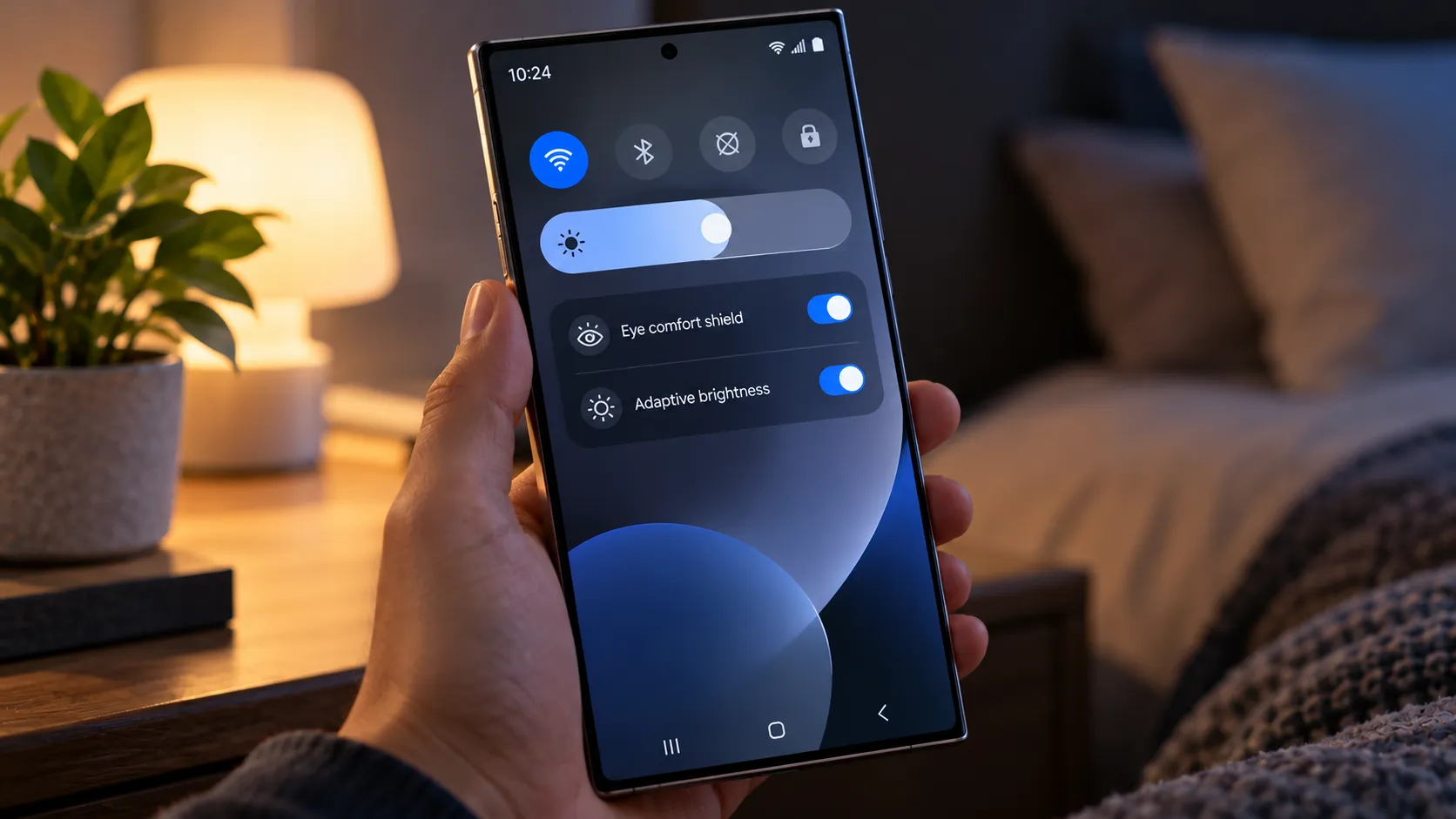
If notifications and toggles stopped sharing one shade after updating, that's intentional. One UI 7 splits the pull-down panel into two separate swipeable pages: pull down from the top-right corner for Quick Settings, top-left for notifications, a layout that mirrors how iOS handles the split (Android Authority).
Android Authority called the split design "one of the most polarizing" changes in One UI 7 (Android Authority).
Samsung finished rolling One UI 7 out to older Galaxy phones and tablets last year, according to Android Authority, though that report didn't list every eligible model or spell out a universal rollout schedule (Android Authority). Check Settings > About phone (or About tablet) before trying the steps below, since the menu this guide covers only exists on devices actually running the update.
Together or separate: picking your panel style
Choosing between the split layout and the old combined view is a separate decision from button order. Nothing in the available reporting suggests that picking Together over Separate affects whether the top-row editor described below shows up on a given device.
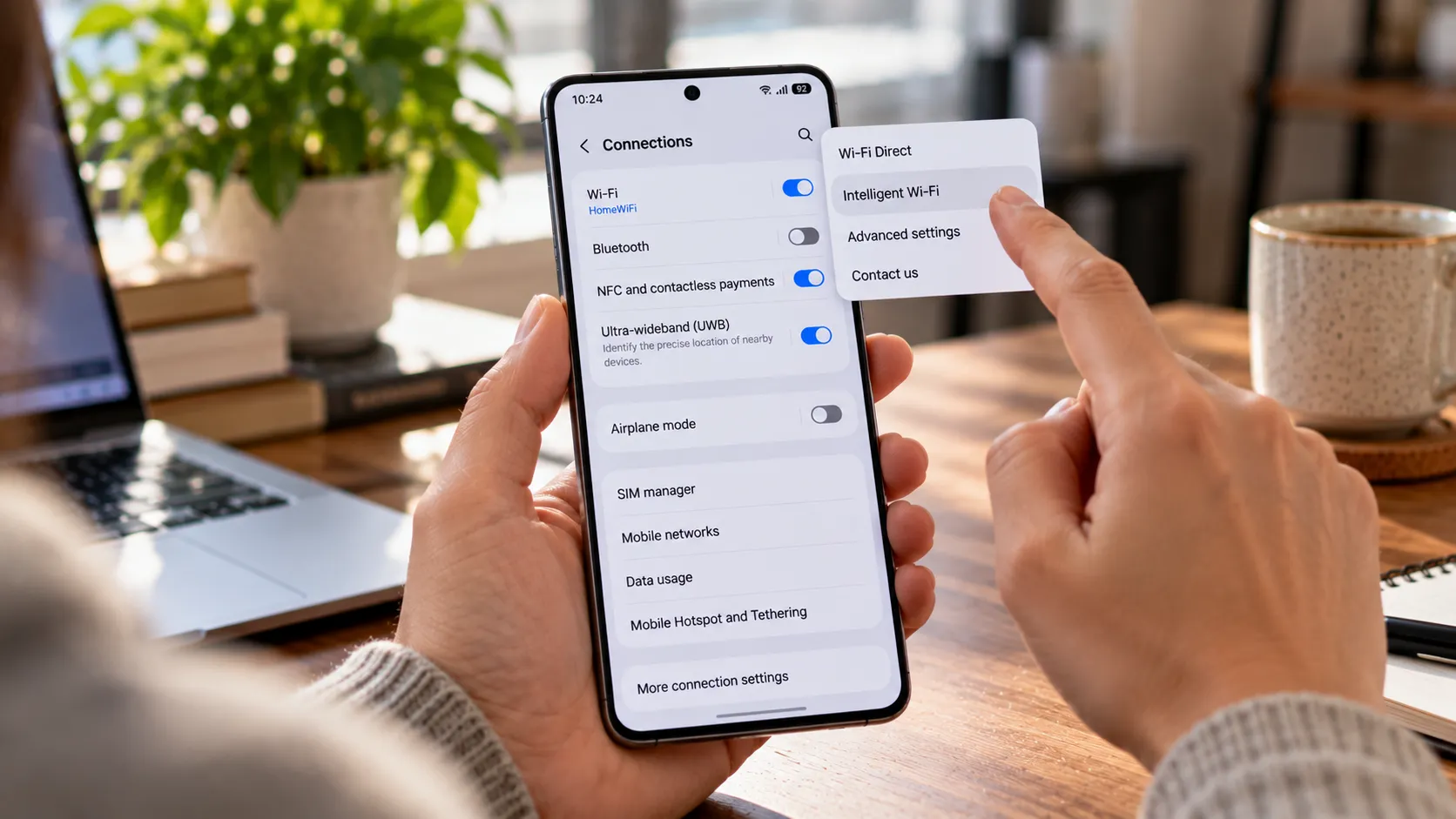
Android Authority and MakeUseOf both describe the same path for restoring a single, unified panel: tap the pencil icon, tap Panel settings, then choose Together instead of Separate. Both accounts come from hands-on walkthroughs rather than controlled testing, but they land on the identical sequence (Android Authority).
Samsung also surfaces this same choice as an on-screen prompt right after installing One UI 7, so some users pick a side before ever seeing the split layout in daily use (Android Authority). The setting stays available in Panel settings afterward for anyone who wants to revisit it later.
How to change Quick Panel button order on One UI 7
A Galaxy tablet owner posted the exact steps to edit top Quick Settings on Samsung Galaxy in a Samsung Community thread after asking how to change the first six buttons shown on a single swipe down (Samsung Community):
- Swipe down from the top-right of the screen to open Quick Settings.
- Tap the pencil icon.
- Tap Panel settings.
- Scroll down within that menu until Edit top quick settings appears, then tap it.
The tablet owner reported that this path surfaced the "quick row," the set of buttons visible after a single swipe, and said it let them rearrange that row by touch and drag. The post doesn't establish whether the same option, screen, or button count appears on other Galaxy phones or tablets (Samsung Community).
That owner's original question specifically referenced six buttons in this row. That number comes from one tablet and one thread, not a confirmed count across Galaxy models, so treat "top row" as something that likely varies by device rather than a fixed layout everyone will see.
A separate Samsung Community thread about the Galaxy S23, posted around the same time last year, shows the same pencil-icon, Panel settings path exists for restoring the combined view. That at least confirms the core editing menu is present on phones as well as tablets (Samsung Community). It doesn't confirm that Edit top quick settings itself works the same way, since that specific screen has so far only been documented on a tablet.
What's beyond the top row, and what's still unverified
Scroll past the top row inside that same pencil-icon editor and there's a broader toggle area below it. Sammy Mobiles reported that this general edit mode works similarly to the editor in One UI 6, where holding a tile lets you drag it into a new spot, though that report covers the broader toggle grid, not the top-row editor that's the focus of this guide.
That report, published in late 2024 during the One UI 7 beta, described eight visible positions arranged in a 2x4 layout and referenced as many as 18 toggles overall, with Wi-Fi, Bluetooth, SmartThings, and Smart View pinned in fixed spots (Sammy Mobiles). It's unclear whether those figures describe a single page, multiple pages, or a total available pool, and the report doesn't establish that the same limits survived into the stable release most devices run now.
That same beta-era report suggested organizing toggles by how often they're used, keeping something like mobile hotspot near the top and leaving less frequent switches like Power saving lower in the grid (Sammy Mobiles). It's a reasonable habit, not a rule Samsung documents anywhere, and it may not even match the toggle structure on whatever stable build is currently installed.
If Edit top quick settings doesn't appear
Start by confirming One UI 7 is actually installed. Go to Settings > About phone (or About tablet) > Software information and check the One UI version listed there.
If it's installed, reopen Quick Settings from the top-right swipe, tap the pencil icon, and check Panel settings again. Scroll within that menu rather than assuming the option is missing just because it isn't visible right away.
If the option still isn't there after confirming the software version, the available sources don't explain why. A model difference, a regional rollout quirk, or a specific carrier build are all plausible, not confirmed, causes. Treat the feature as unconfirmed for that particular device rather than assuming something is broken.
The only detailed account of Edit top quick settings so far comes from one tablet owner's community post from last year. Checking Panel settings directly on the device in hand, rather than assuming the tablet experience carries over to a phone, is still the only way to know whether it applies.

Comments
Be the first, drop a comment!