



Blue indicator on Samsung Galaxy phone: what it means
A blue indicator on Samsung Galaxy phones has started showing up in the status bar on devices running One UI 9, and it has one job: flagging when an app is actively pulling your location. SamMobile identifies it as a location privacy indicator tied to the Android 17 update, spotted two weeks ago, and not a system glitch.
The icon lights up for both foreground and background location access, covering apps you're actively using as well as ones quietly checking your GPS behind the scenes. Google tested a similar dot for Pixel phones in the Android 16 QPR3 beta about 10 months ago, according to 9to5Google, though that report describes a feature planned for early 2026 rather than a rollout confirmed live today.
This article covers what's confirmed about the One UI 9 indicator, how to tap it to identify the responsible app, how to adjust permissions once you find it, and why Galaxy phones on older software show a different icon that doesn't behave the same way.
What the blue indicator on a Samsung Galaxy phone means
One UI 9 adds a dedicated blue location-privacy icon that appears the moment an app accesses GPS or location services. It's a separate signal from the green dot Android has used for camera and microphone access since Android 12, per 9to5Google.
Google's version merges the location dot with that green camera-and-microphone dot whenever an app is using multiple permissions at once, per 9to5Google. Samsung's implementation hasn't been reported to work the same way, so the blue dot on the Galaxy status bar and the one Google tested for Pixel look like separate engineering efforts that happened to land around the same time.
None of the available reporting says which Galaxy models get One UI 9 first, which regions see it, or when it reaches devices outside the initial Android 17 rollout. SamMobile confirms the blue indicator as a real One UI 9 feature, but nothing in current reporting guarantees it's live on every Galaxy phone right now.
How to see which app is using location on Galaxy
Pulling down the Quick Panel and tapping the blue indicator reveals which app triggered it, SamMobile reports, including apps running in the background rather than just the one currently open.
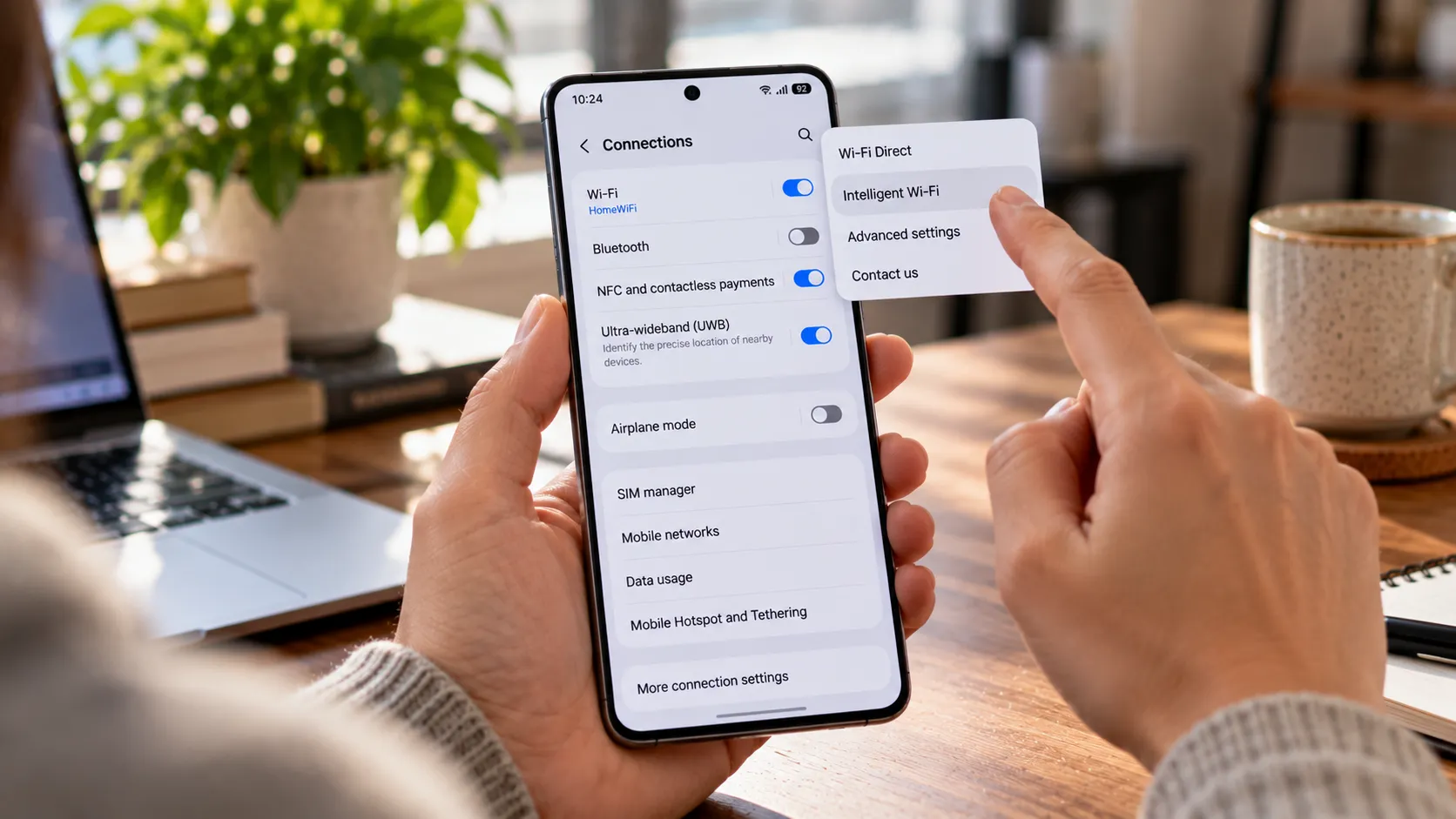
If the blue icon isn't showing up on your phone, SamMobile's guidance points to Settings > Location > App permissions, which lists recent location requests and current permission levels by app.
On older Galaxy software without the blue dot, pulling down the notification panel can still surface which app is using location, according to SamMobile in a guide published earlier this year.
Managing location permissions once you've found the app
Permission options vary slightly depending on the source. SamMobile's reporting on the One UI 9 feature lists "all the time," "only while using the app," "don't allow," and, for some apps, an "ask every time" option. A separate SamMobile guide to the general Permission manager describes three categories instead of four, so the exact menu a reader sees may depend on the app and the One UI version installed.
These settings live under Settings > Location > App permissions, or Settings > Privacy > Permission manager > Location, depending on the build.
Navigation, weather, ride-sharing, and fitness apps typically need location to work, while games, calculators, and note-taking apps generally don't, per SamMobile. Social apps sometimes ask for it to surface nearby friends or local content, and shopping apps may use it for store locations or regional deals, which is worth weighing before granting access out of habit.
"Only while using the app" cuts off background tracking for an app accessing location on a Samsung phone, without breaking the features that actually need it.
Permission changes apply immediately, SamMobile notes, so switching an app to "don't allow" and restoring access later if something breaks doesn't require a restart or reinstall.
SamMobile also recommends revisiting these settings periodically, since which apps are installed, and how comfortable you are sharing data with them, tends to shift over time.
Why older Galaxy phones show a different icon
One UI 7 users have reported a persistent green location indicator that stays visible even when no third-party app is actively using location. Tapping it surfaced system apps using location in the background, SammyGuru found last year through its own testing, rather than pointing to a bug tied to a specific app.
SammyGuru observed the persistent indicator on the Galaxy S25 Ultra and S24 Ultra units it tested in the US, but not on the international units it checked. The outlet floated a possible tie to US privacy regulations but noted no official explanation has surfaced, and the pattern hasn't been confirmed across the rest of the Galaxy lineup.
Those background system apps had always used location, even before One UI 7, per SammyGuru; Samsung simply hadn't surfaced an indicator for it until that update. The outlet also didn't find any battery drain tied to the icon, so it looks like a visibility change rather than a performance issue.
The green or arrow-shaped location icon on pre-One UI 9 phones behaves differently from the new blue indicator based on the reporting gathered so far. That behavior appears to vary by model and software build rather than following one fixed rule across the Galaxy lineup.
What to check now
Start by confirming your software version. On One UI 9, tap the blue indicator in the Quick Panel to see which app is using location, including apps running in the background. On older builds without it, head to Settings > Location > App permissions and review access manually.
Don't assume a green or persistent location icon on an older Galaxy phone works the same way as the new blue one. The available reporting treats them as separate behaviors tied to different software versions, not two versions of the same feature. If it's unclear whether an app genuinely needs location, switch it to "don't allow" first, per SamMobile's advice, and only restore access if something stops working.








Comments
Be the first, drop a comment!