






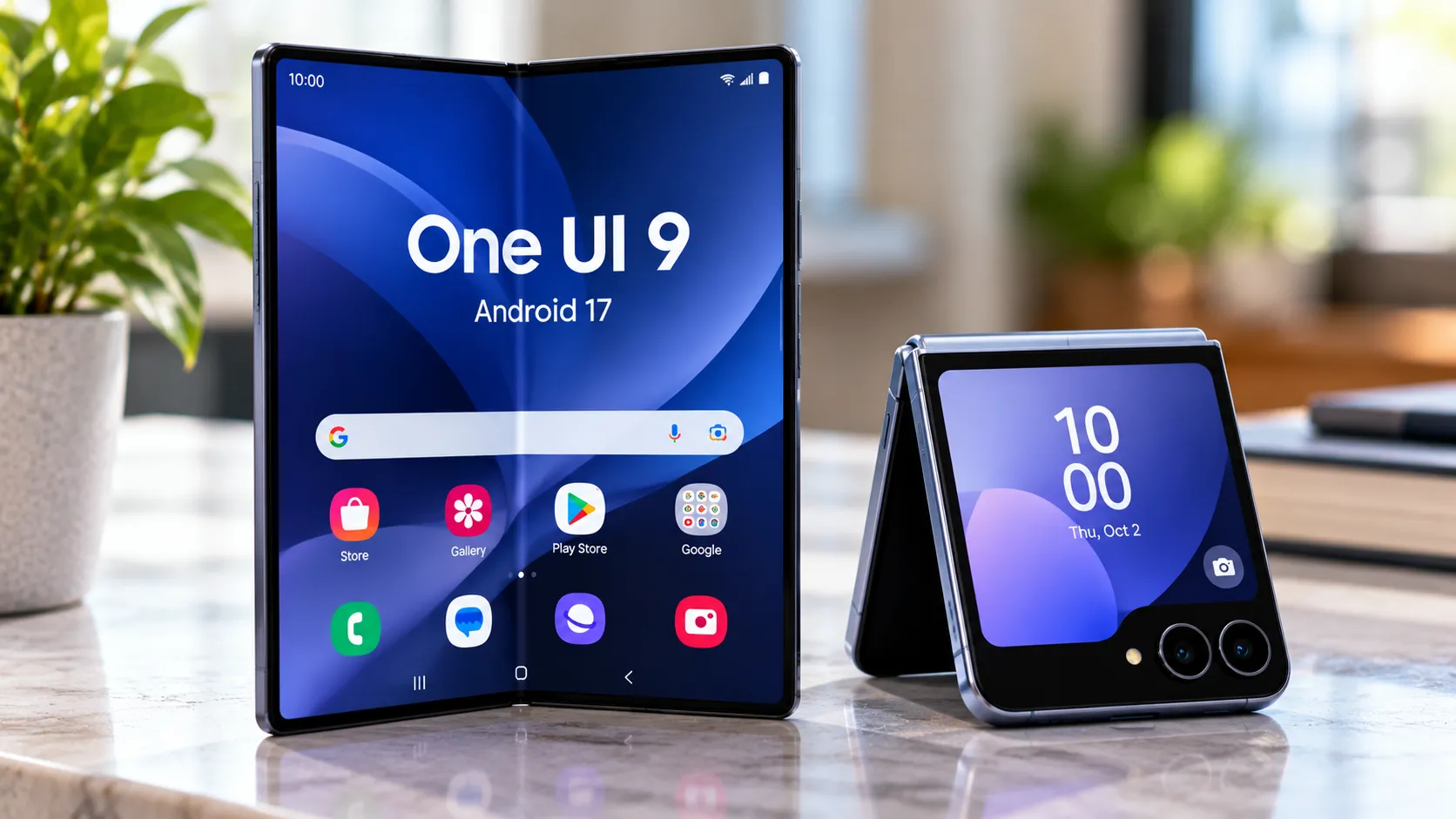
Samsung's One UI 9 Beta 6 update adds a toggle that lets Galaxy S26 owners disable AI Select's long-press trigger on the Edge Panel handle, according to Android Authority. Here's how to disable AI Select in One UI 9 Beta 6 without switching off Edge Panels altogether. It's a fix for a recurring annoyance reported by users: lingering slightly too long while swiping out an Edge Panel would freeze the screen and launch the AI Select overlay, whether they meant to trigger it or not.
Before this build, the only way to stop that gesture from firing was to turn off Edge Panels entirely, per the same report. Beta 6 separates the long-press behavior from the rest of the panel, so swipe-out access stays intact while the one gesture causing trouble gets its own switch.
The update arrives partway through Samsung's One UI 9 beta cycle for the Galaxy S26 series, which opened to testers in Germany, India, Korea, Poland, the U.K. and the U.S. in May, according to Samsung's announcement. The new option is confirmed for Galaxy S26 hardware running Beta 6. How far it travels from there, stable release, other devices, remains open.
How to turn off Touch and hold for AI select
Finding the setting takes one trip through the menus. Go to Settings > Display > Edge panels, and Beta 6 now shows a "Touch and hold for AI select" switch inside that screen, per Android Authority.
The switch lives inside the Edge panels submenu rather than a general AI settings page, and it governs one specific input: the long-press on the peek window, the small handle that appears when a user swipes in from the edge of the screen. The normal Edge Panel swipe gesture remains available, and AI Select can still be launched from its shortcut inside the panel.
That specificity is the point. Samsung didn't build a blanket AI kill switch here. It isolated the exact motion that was causing problems and gave users a way to turn off just that.
Galaxy S26 accidental AI Select triggers were a recurring complaint
Android Authority reports that Samsung tied the long-press action on the Edge Panel handle directly to AI Select, and that connection is what created the problem. Anyone who lingered slightly too long while swiping a panel open would trigger the tool without meaning to.
That meant a routine motion, pulling out a panel to check a widget or a shortcut, could freeze the screen and drop a selection overlay over whatever the user was doing mid-task. Samsung Community forum members voiced irritation over these frequent, accidental activations, according to the same report.
Until Beta 6, there was no middle ground for anyone bothered by this. Users either tolerated the accidental triggers or disabled Edge Panels outright, giving up a feature they might otherwise have wanted just to stop the interruptions. Neither option addressed the actual source of the frustration, which was the gesture, not the panel.
What changes when you disable the long-press gesture
With the toggle switched on, Edge Panels behave the way they always have: long-pressing the peek window brings up AI Select, according to Android Authority. Switch it off, and that same long-press does nothing. No overlay, no frozen screen, no interruption.
Turning the gesture off does not disable AI Select itself or the other functions described in the report. The feature stays reachable through a dedicated shortcut icon inside the Edge Panel, so users who disable the long-press still have a one-tap way to launch it when they actually want it.
That's the full scope of the change. It's a gesture toggle, not a feature switch: it stops one input method from launching AI Select automatically, and it leaves everything else about the tool, and the panel, untouched.
What AI Select does, and why the shortcut sticks around
AI Select is Samsung's Galaxy AI-era update to the older Smart Select tool, according to Android Authority. The basic interaction is a marquee selection: draw a box around any part of the screen, then decide what to do with what's inside it.
From there, the tool branches into several Galaxy AI functions. It can pull editable text out of an image through Writing Assist, turn a clip of playing video into an animated GIF, or send a cropped image straight into Generative Edit or Drawing Assist for further editing, per the same report.
The tool overlaps with Google's Circle to Search, according to Android Authority, since both let a user select a portion of the screen and act on it with AI. The new toggle leaves the underlying AI Select feature intact while addressing the gesture that was causing accidental launches.
For anyone unfamiliar with the older tool, Smart Select worked as a similar screen-capture-and-act utility before Samsung folded Galaxy AI functions into it. The rebrand also brought Galaxy AI functions into a tool that originated as Smart Select.
Rollout status and what's still unconfirmed
The toggle is documented in One UI 9 Beta 6 for the Galaxy S26 series, per Android Authority. The available reporting does not confirm whether it will carry over to the stable release of One UI 9, or extend to older Galaxy phones, tablets, or foldables that also use Edge Panels.
Samsung's beta program was announced for select markets in May: Germany, India, Korea, Poland, the U.K., and the U.S. That list defines the markets included in Samsung's broader beta program, but it does not establish Beta 6 availability in all six.
What's confirmed for now is specific: Galaxy S26 owners running One UI 9 Beta 6 can turn off the Edge Panel long-press that was freezing their screens, and AI Select remains one tap away through its shortcut icon regardless of which way the toggle is set. Stable-release timing and support for older hardware remain unannounced.



Comments
Be the first, drop a comment!