





How to fix Galaxy Z Fold 8 app icon misalignment
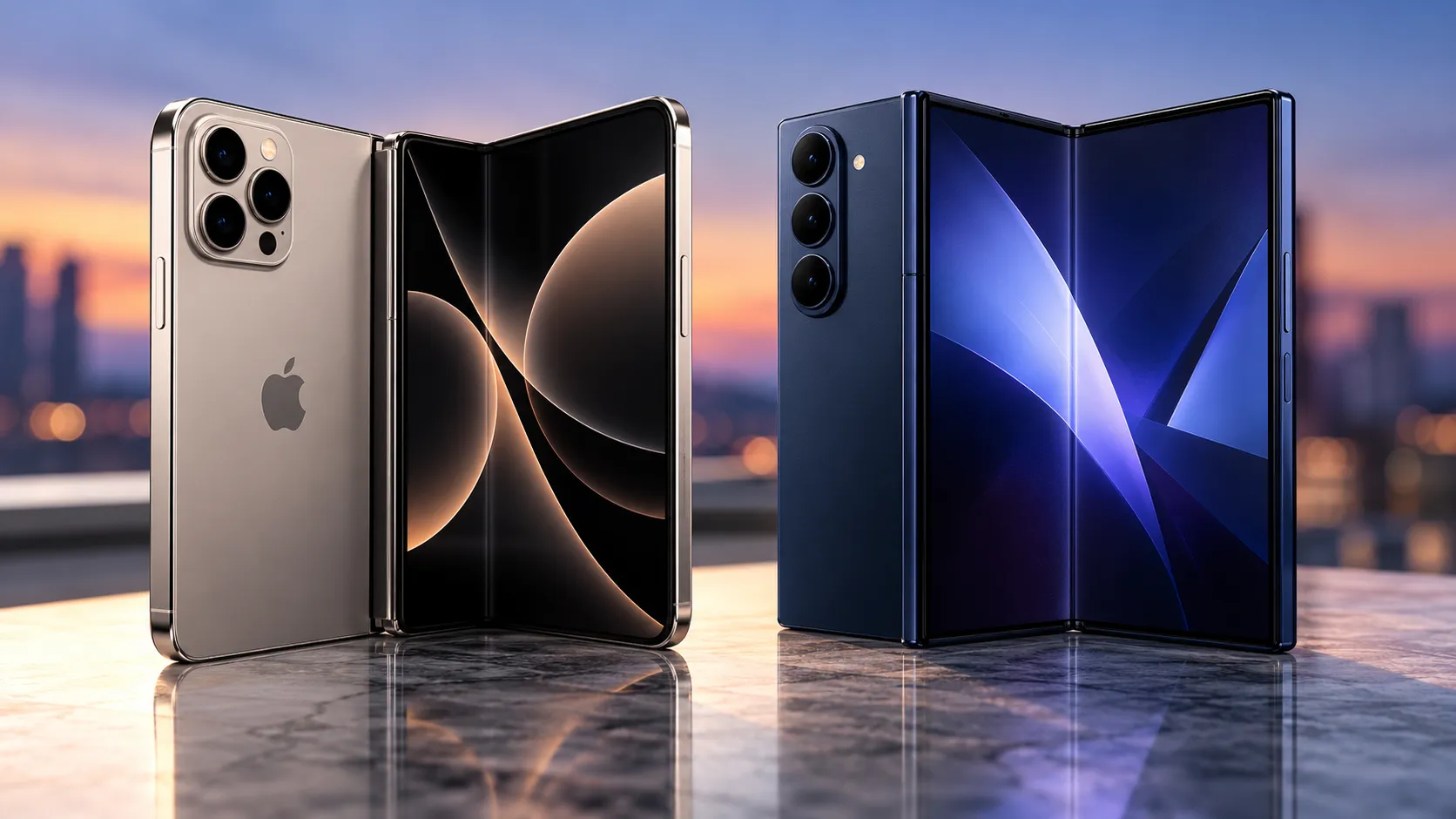
Galaxy Z Fold 8 owners are posting screenshots on Samsung's community forum of a home screen gone sideways: icons overlapping, apps sliding past their assigned grid spots, some landing in the gap between the inner display's two panes. One owner said an icon got stuck there entirely, impossible to select or drag back (Android Authority, today). If you're trying to figure out how to fix Galaxy Z Fold 8 app icon misalignment, there's a specific software update worth checking before you waste time manually rearranging anything.
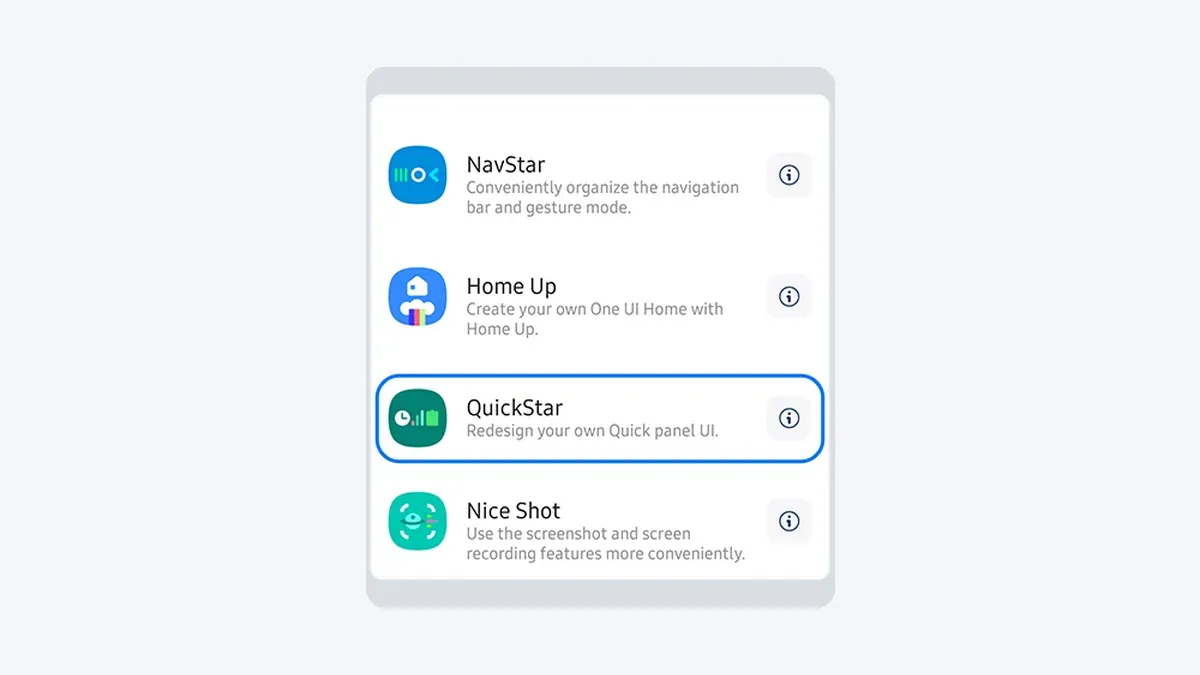
A member of Good Lock's support team has confirmed a layout distortion issue tied specifically to the Fold 8 (Android Authority, today). That lines up with reporting from last month, when SquaredTech found that Samsung had acknowledged a Home Up bug connected to DIY Home, the module that gives Galaxy owners unusually granular control over icon placement and launcher styling (SquaredTech, last month).
This guide walks through confirming your symptoms match the reported issue, updating Home Up to the version Good Lock support is now recommending, and restoring your layout afterward. It also covers what to do if icons drift again, and what Samsung still hasn't confirmed about whether the fix holds for good.
Why are Galaxy Z Fold 8 apps moving on the home screen?
Fold 8 owners on Samsung's forum have posted screenshots of icons stacking on top of each other, with some apps ending up entirely outside their assigned grid position (Android Authority, today). One user described apps drifting into the space between the two display panes and becoming impossible to select or drag back into place (Android Authority, today).
Nothing in the available reporting points to a hardware fault. The pattern lines up with a software bug in Home Up instead. If your Fold 8's icons are overlapping, drifting past their spots, or stuck in the hinge gap, check your Good Lock settings before assuming something is physically wrong with the phone.
What's confirmed about Home Up and DIY Home
SquaredTech reported last month that Samsung acknowledged Home Up, one of the most popular modules in the Good Lock suite, can push folders and widgets outside the visible home-screen area (SquaredTech, last month). The company traced the problem to DIY Home, and a separate bug tied to the same module was reportedly shoving folders onto adjacent home-screen pages (SquaredTech, last month).
The complaint that drew Samsung's response came from a Fold 8 owner describing the issue specifically on the inner display (SquaredTech, last month), which lines up with what Fold 8 owners are reporting on Samsung's forum now.
Foldables are more exposed to this kind of bug than a standard slab phone. The same layout has to survive the cover screen, the inner screen, folded and unfolded states, and a module calculating icon positions across all of them has more chances to get it wrong (SquaredTech, last month). None of this means every Good Lock user should uninstall Home Up (SquaredTech, last month). It does mean Good Lock's settings, not the hardware, are the first place to look.
Manual rearranging doesn't hold, so update first
If your instinct is to just clean up the mess by hand, at least one affected owner found that doesn't stick. One Fold 8 owner said that even after locking the home layout and manually rearranging icons, the arrangement reverted to a mess within a couple of days (Android Authority, today). Another described an app that "went into a strange place and won't move," even after directly trying to reposition it (Android Authority, today).
Samsung isn't new to this problem. Last month, it shipped Home Up version 18.0.00.32 with release notes citing a fix for "DIY Home Screen Layout Position Errors," rolling out to devices on One UI 9.0, including the Galaxy S26 lineup, the Z Fold 8, and the Z Flip 8 (SamMobile, last month). That update installed through Galaxy Store by going to Menu, then Updates, then Update all (SamMobile, last month).
Whether that patch was meant to cover the overlapping-icon and hinge-gap symptoms Fold 8 owners are describing now isn't spelled out in Samsung's release notes. What is clear is that Good Lock support is now pointing affected users to a newer build. Treat v18.0.00.32 and v18.0.00.36 as two separate fixes, not interchangeable ones.
How to fix Galaxy Z Fold 8 app icon misalignment with Home Up v18.0.00.36
Before starting, make sure Good Lock is installed with the Home Up module active.
- Open Good Lock.
- Tap the Apps tab.
- Find Home Up in the list.
- Tap the update icon next to Home Up (Android Authority, today).
- Confirm you land on version 18.0.00.36, the build Good Lock support is currently recommending to affected Fold 8 owners (Android Authority, today).
If your icons are overlapping, drifting past the grid, or stuck in the gap between the inner display's panes, that matches what Good Lock support has already acknowledged for the Fold 8. This update is the step worth trying first.
If you don't see version 18.0.00.36 yet, there's no confirmed rollout schedule to point to. Check Good Lock's Apps tab periodically rather than assuming your device has been skipped.
Restore your layout with Home Screen Edit
Once Home Up is updated, long-press an empty area of your home screen to open Home Screen Edit, then drag any icons, folders, or widgets that were pushed out of place back into a normal grid position. This becomes possible again once the update is installed, according to Android Authority, whereas some icons reportedly couldn't be moved at all beforehand (Android Authority, today).
If an icon still won't budge or keeps landing back in the hinge gap after updating, no source confirms a fix for that specific scenario. Restarting the device is a standard Android troubleshooting move worth trying, but it's not something Good Lock has documented as a remedy. One clean rearranging pass is a good sign. It isn't proof the underlying bug is gone for every device.
What to do if the layout breaks again
Android Authority's reporting today notes the problem appears to have been resolved by the new update, though that's based on Good Lock support's own guidance rather than independent, long-term testing (Android Authority, today). SquaredTech reported last month that Samsung's Good Lock team had a permanent fix in development with no release date attached (SquaredTech, last month). Treat v18.0.00.36 as the current recommended fix, not a guarantee it covers every affected configuration.
Here's what's actually nailed down versus what isn't:
- Confirmed: the overlapping, drifting, and hinge-gap symptoms Fold 8 owners are reporting; Good Lock support's acknowledgment of the issue; the v18.0.00.36 recommendation; and the ability to rearrange icons through Home Screen Edit after updating.
- Not confirmed: whether v18.0.00.36 prevents the layout from breaking again on every affected device, and how it actually differs from August's v18.0.00.32 release.
If your layout keeps shifting after updating and manually restoring it, SquaredTech's reporting on Samsung's guidance points to disabling DIY Home as a stability-first workaround while a permanent solution is finished (SquaredTech, last month). That's the outlet's read on Samsung's acknowledgment, not a published Samsung instruction, so weigh it against how much you actually use DIY Home's customization versus wanting a home screen that stays put.
What to do now
Check Good Lock's Apps tab today for the Home Up update, confirm you land on version 18.0.00.36, then use Home Screen Edit to restore your layout. If icons drift again after a few days, disable DIY Home and keep watching Good Lock's update notes rather than assuming the problem is fully solved.

Comments
Be the first, drop a comment!