



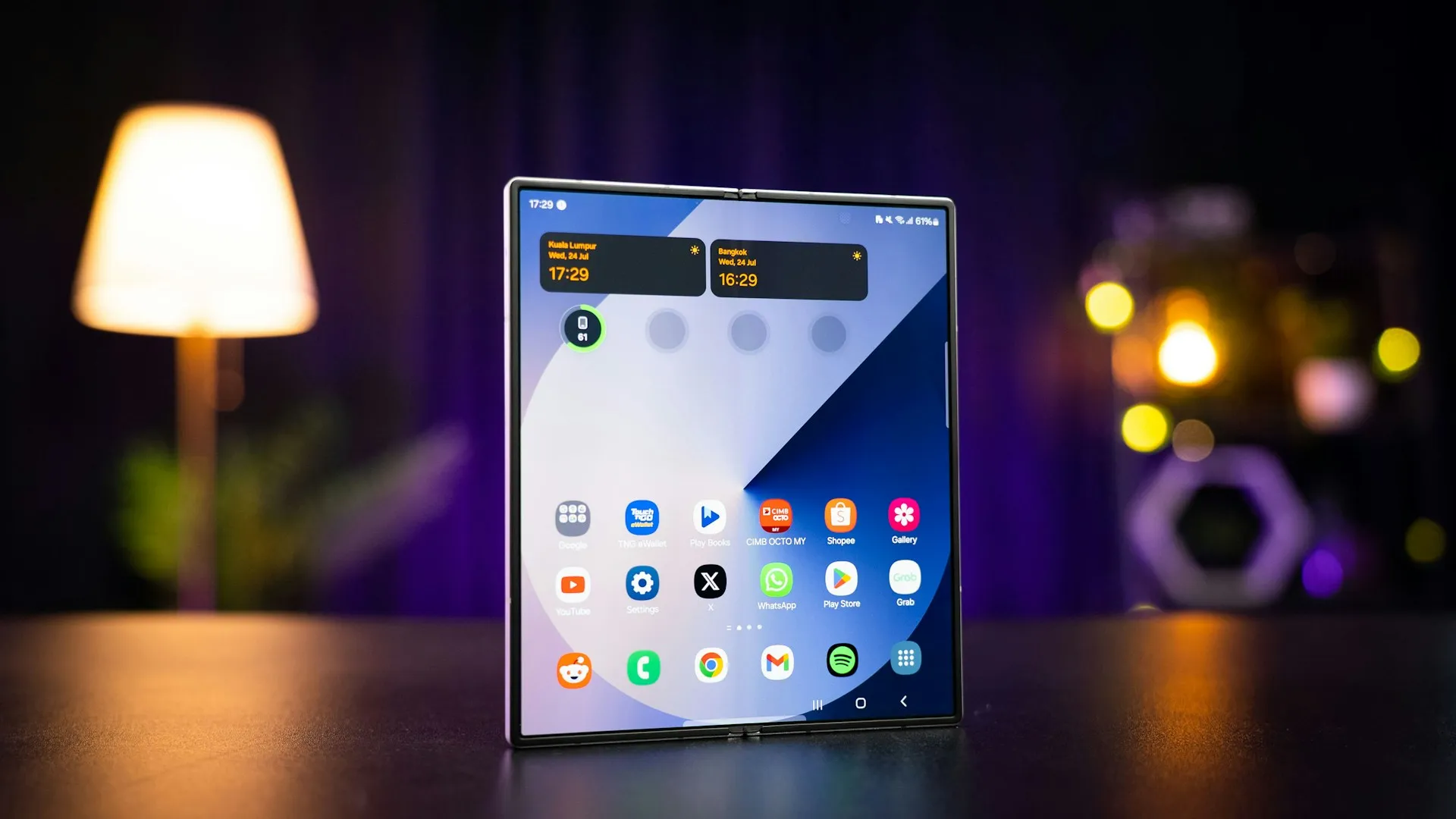
Three Google system components on Samsung Galaxy phones have pending updates that do not appear on the Play Store's "Manage apps & device" screen, the same screen most users check to confirm everything is current. The components are Android System SafetyCore, Android System WebView, and Google Play Services. Each one requires a separate manual check to find and install.
Two months ago, Samsung began notifying Galaxy users that the Digital Key feature inside Samsung Wallet may stop functioning on devices running outdated versions of Google Play Services. Samsung Wallet had recently added smart door lock support alongside its existing car key functionality, which widened the practical impact. If Play Services falls significantly out of date, users may not be able to lock or unlock supported smart locks or compatible vehicles at all, SamMobile reported at the time.
The confirmed updates are SafetyCore 1.0.925574157, WebView 149.0.7827.91, and Play Services 26.22.33. SamMobile said it verified availability on Galaxy devices in India. Independent confirmation in other markets is not yet available, though the behavior of these components not surfacing on the standard update screen is not geography-specific.
What these three components actually do
These are not ordinary apps. Android System WebView handles how web content renders inside other applications when an app displays a webpage without opening a separate browser, WebView is doing that work. Google Play Services is the infrastructure layer that keeps Google apps functional, powers location services, and routes notifications across the device. Together, they sit closer to the operating system than most users would expect.
Android System SafetyCore is the third component with an update now available. No changelogs accompany any of these releases, which is standard practice for system-level components. Updates to all three typically carry security patches, performance improvements, bug fixes, and new features. What specifically changed in the versions available now is not documented by either source.
The one documented failure case on record involves Play Services specifically. Two months ago, Galaxy users who had let Play Services fall behind found that Samsung Wallet's Digital Key feature may stop working. A Samsung-branded feature, in Samsung's own app, breaking because of a Google component that the standard update screen does not reliably surface. No equivalent failure mode appears in current reporting for outdated WebView or SafetyCore versions.
Play Services vs. Google Play system updates
Before running through the steps below, one distinction is worth getting right: Google Play Services and Google Play system updates are two separate things, and Galaxy devices make it easy to confuse them. Google Play system updates are separate Android system-level updates delivered through Google Play.
Google Play system updates handle core Android features like Theft Protection. The instructions below cover Play Services only. The system update check lives in a different part of the settings menu and is a separate process entirely.
Play Services does not always advance automatically with a Samsung firmware update. A completed firmware update is not, on its own, confirmation that Play Services is current. The April Samsung Wallet episode made that clear.
How to install manual Samsung Google app updates
The Play Store's Manage apps & device page will not show these updates. Confirmed pending versions simply do not appear there. Each component requires its own check through a different path.
For Android System SafetyCore and Android System WebView: Open Settings, tap Apps, search for the component by name, open its listing, scroll down, and tap "App details in store." This opens the component's Play Store page directly. If an update is pending, an Update button will appear. Repeat the process for the second component.
For Google Play Services: The path is different. Play Services surfaces in the Google settings hierarchy rather than the standard app list. Go to Settings, then Google, then All services, then System services, then Google Play Services, and tap Update if available.
Confirming the update applied: On the Play Store page for each component, an "Open" button where "Update" was means the device is current. If a restart prompt appears after installing Play Services, follow it Play Services may not be fully applied until after a reboot.
If no Update button appears: The device may already be running the current version. Confirm the correct Google account is signed into the Play Store, since the Update button will not appear if the store session does not recognize the device. A notification to update Play Services may occasionally appear even when the component is already current if the Play Store page shows "Open," the installation is up to date regardless of any alert.
When this check is most worth doing
Two situations stand out based on what the April Samsung Wallet episode established. First, after installing a Samsung firmware update, since Play Services does not always advance alongside it. Second, when a Samsung-branded feature starts behaving unexpectedly a Google system component that has drifted behind is a reasonable first thing to rule out.
During the Digital Key episode, Samsung sent notifications to affected users, but only after the failure was already apparent. A manual check beforehand would have kept those devices current. The Manage apps & device screen offered no signal either way.
Why these components are excluded from that view at all remains an open question. Neither Google nor Samsung has addressed it publicly. Until something changes, the direct Play Store listing check is the only verification that actually works, and given the three updates confirm the pattern is ongoing, it is probably not a one-time workaround.

Comments
Be the first, drop a comment!