



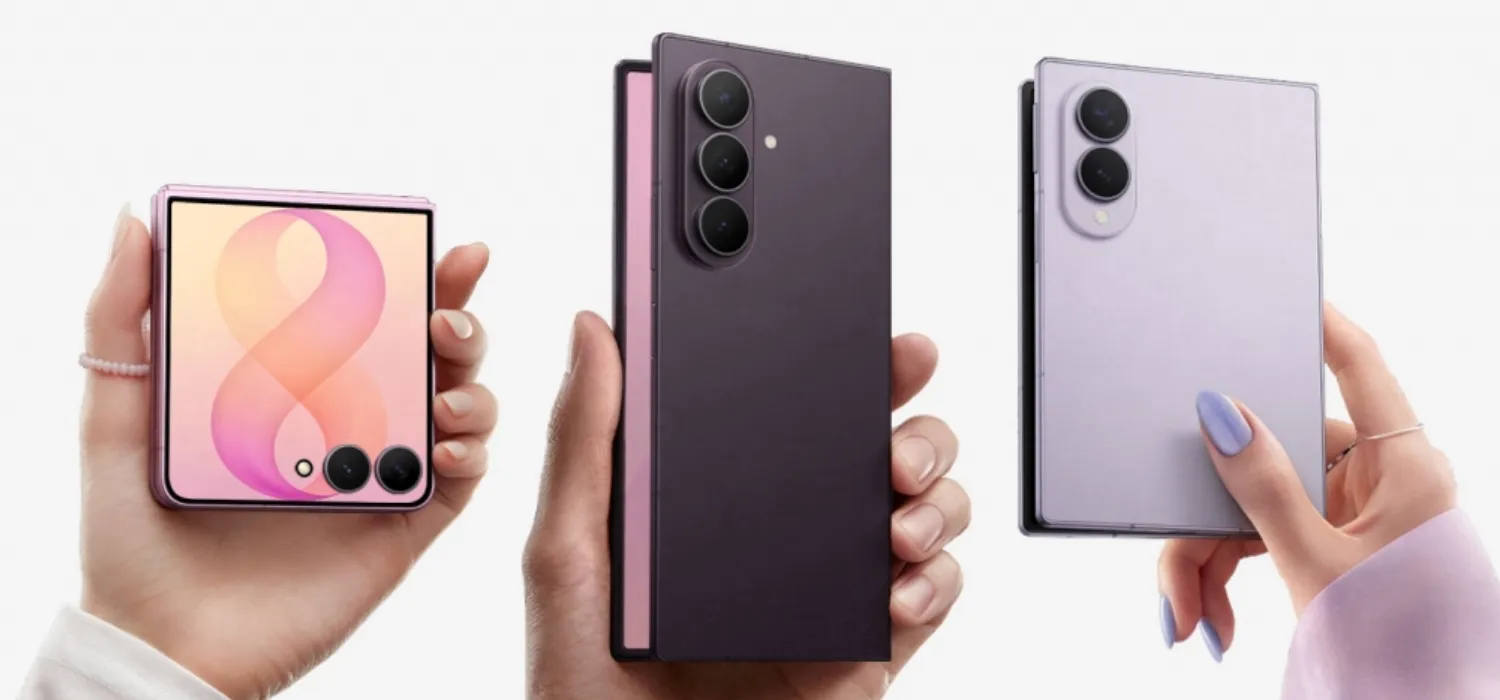
A guide posted on XDA Forums last year describes a way to run Samsung DeX on a Galaxy Z Fold's internal screen, with no monitor, dock, or book cover attached.
It chains together Termux, wireless ADB, and the command-line tool scrcpy to convince a One UI 8 device that an external display is connected, which the author says is enough to launch "Classic DeX" using nothing but the phone itself. This piece walks through exactly what that method claims, what it doesn't prove, and the steps as published, so you can decide whether it's worth trying on your own Fold.
Here's the short version: this is an experimental, author-acknowledged workaround, not a tested Galaxy Z Fold procedure. The guide targets "One UI 8 Tablets & Phones" broadly, never names a specific Fold model, and opens with a warning that readers proceed at their own risk. At least one commenter tried the install sequence and hit errors nobody in the thread resolved. Everything below should be read as a documented claim, not a guarantee.
Fold owners have wanted this for a while. Back in 2021, an XDA thread confirmed there was no setting to force DeX onto the device's own screen, and posters hoped a future One UI release would eventually add one.
Samsung has since rebuilt DeX on top of Android's desktop mode, according to Android Authority, and last year's One UI 8 update added home screen widgets, taskbar pinning, and new keyboard controls to the feature. But every one of those additions is scoped to DeX running on a connected display, per Android Authority's reporting. That's precisely the gap this community workaround is trying to close without Samsung's involvement.
Before you start: what's known, unknown, and risky
The author describes pairing over wireless ADB, launching scrcpy with a --new-display flag, then opening the Termux:X11 app to view the result. In the author's own words, the goal is to "fool the device to think that there is a connected display and enable DeX." That's the guide's stated intent, not an independently verified account of how the mechanism actually behaves.
What's unresolved matters just as much as what's claimed. One commenter reported running the exact install commands and getting "Unable to locate package scrcpy" and "Unable to locate package termux-x11-nightly" errors, and nobody in the thread posted a fix. The guide never specifies which package repository Termux or Termux:X11 should come from, so the failure may instead reflect the command syntax, repository state, Termux installation source, or another setup issue; the thread does not establish the cause.
Beyond that, nothing in the sourcing names a tested Fold model, chipset, region, or One UI build number. There's no screenshot and no detailed description of what a working session actually looks like, aside from the author noting that latency and input delay are currently too high. Nothing reviewed here confirms this sequence has run successfully on any Galaxy Z Fold.
The trick behind Samsung DeX on Galaxy Z Fold without an external monitor
The interesting part of this method isn't the terminal commands; it's the assumption underneath them. The author uses --new-display to spin up a virtual display and tells readers to open Termux:X11 afterward, but the sourcing doesn't independently confirm how that display is rendered or whether the full sequence works on a Fold specifically.
That's a different premise from streaming an existing DeX session back onto the phone's own screen. It's closer to convincing the device a monitor exists when none does, assuming the author's account of the mechanism holds up. Whether that actually satisfies whatever check normally requires a physical display is the guide's claim, not a confirmed technical fact.
A real hardware setup makes the contrast obvious. In a post from 2022, one XDA user described running DeX on a Galaxy Z Fold 4 through an HP Elite X3 Lap Dock, reporting working trackpad clicks, functioning USB, and working media keys, and calling the overall result "solid enough to daily-drive."
That's one owner's favorable account of a physical connection, and it's a fundamentally different path from the software trick covered here. Samsung's own DeX investment, including the widgets and taskbar features added last year, is still built around that connected-display model, not the local, no-monitor version this workaround attempts.
Prerequisites
Confirm each of these before starting, exactly as the guide specifies:
Developer Options enabled: Settings > About phone > Software information > tap the build number seven times.
Wireless Debugging and "freeform windows on secondary display" both toggled on.
Termux installed, plus the Termux:X11 Android app and its companion
termux-x11-nightlypackage. The XDA guide does not spell out those installation details.A way to view Settings and Termux at the same time, using split-screen or a floating window, since pairing requires switching between the two apps.
What counts as success here
Keep the bar narrow before running anything. The author's claimed outcome is a DeX session appearing directly on the device's own display, though the source never identifies a Fold model and gives no sense of how long that session stays stable. The author states plainly that latency and delay are currently too high, listing it as unsolved work he's hoping other contributors can help with.
The sourcing doesn't describe how typing feels, whether touch input works inside the session, or what happens to battery life and heat over time. Don't assume any of that is fine just because the display technically launches. Treat this as a proof-of-concept test, not a path toward a keyboard-and-mouse productivity setup.
Running Classic DeX on One UI 8: the documented steps
One warning before the commands: the source names no supported Fold model or One UI build, and one commenter's installation failed outright. If a package fails to install, don't assume the XDA sequence is complete; check the official package instructions before proceeding, because the forum thread itself provides no troubleshooting.
Install the required packages in Termux.
pkg update && pkg upgrade -y && pkg install android-tools scrcpy x11-repo -y && pkg install termux-x11-nightly -y
This is the exact point where one commenter got "Unable to locate package" errors for both scrcpy and termux-x11-nightly, with nothing posted afterward to resolve it (XDA Forums).
Pair over wireless ADB. In Settings, open Wireless Debugging and tap "Pair device with pairing code." Note the number shown in the popup, then in Termux run:
adb pair localhost <pairing-code-from-popup>
Once paired, check the main Wireless Debugging screen for a separate "IP address & Port" value, then run:
adb connect localhost <port-from-wireless-debugging-screen>
One catch: the guide's own instructions are ambiguous here. It tells readers to connect using the address and port shown on the Wireless Debugging screen, but the example command it provides still shows "localhost" instead of that address. No correction appears anywhere in the thread, so treat the command as written rather than assuming a typo fix. If pairing fails, double-check the address and port against that ambiguity; the source documents no resolved outcome either way.
Launch the virtual display.
termux-x11 :0 & export DISPLAY=:0 scrcpy --new-display=1920x1080/180
Adjust resolution and DPI as needed, then open the Termux:X11 app.
That's where the published guide ends. The author says this sequence should convince the device that a display is connected and activate DeX inside it, but there's no description of a confirmation screen and no troubleshooting beyond the acknowledgment that latency is currently too high. Neither this article nor the original source can tell you what success actually looks like on screen beyond that point.
Should you attempt this experimental DeX workaround?
This is a reasonable weekend project for someone already comfortable with ADB and Termux who wants to see whether a windowed DeX session appears at all, with zero expectation of daily usability. It's a poor fit for anyone chasing dependable output, sustained typing sessions, gaming, or a stable setup on the level of the lap-dock configuration described in that 2022 hardware report.
If package installation throws "unable to locate package" errors, stop there instead of trying to force a fix; that failure is documented with no posted resolution. The core limitation is evidentiary rather than technical: no source reviewed for this piece confirms a successful run on an actual Galaxy Z Fold.
Any credible follow-up on this would need to name the Fold model and One UI build, identify where the packages actually come from, show the session running, and report specific latency numbers instead of "currently too high." Last year's One UI 8 update expanded connected-display DeX with no mention of a local mode, and a future Samsung update could just as easily change the display-detection behavior this whole workaround depends on.
Until someone publishes those missing details, running Samsung DeX locally on a Galaxy Z Fold's internal display stays a documented idea waiting on confirmation, not a checklist that's guaranteed to work.



Comments
Be the first, drop a comment!