





Learning how to use AI Network Guard on Samsung One UI 9 won't turn your phone into a systemwide ad blocker, but it can prevent new ads from loading inside certain offline-capable apps.
The feature works by cutting an app's internet connection completely, and it lives inside a hidden Wi-Fi menu called Connectivity Labs. Ads may disappear because the app can no longer reach a server to fetch them in the first place, as Android Authority's hands-on testing and Techritual's coverage explain.
Android 17-based One UI 9 has been rolling out to eligible Galaxy phones. Android Authority spent over a month testing beta builds before publishing an October 9 hands-on review that walks through the feature and its basic setup. A related restriction toggle for browsers and games also appeared in the stable One UI 9 release on the Galaxy Z Fold 8 line. This guide covers what the toggle actually does, who can check for it now, how to turn it on, how to test it without breaking anything, and the separate Downtime scheduler built around the same tool.
What AI Network Guard actually does (and why it can block ads)
Samsung didn't design this as an ad blocker. Beta code examined by Android Authority labeled the feature internally as "Network management for concentration," with on-screen copy explaining it's meant to cut distractions from video, social media, and games during work or study. Ad blocking wasn't mentioned in that description.
The ad-free side effect comes from how the restriction works mechanically, not from any kind of ad-detection logic. Once Network Guard cuts an app's connection, the app can't reach the server it would normally call for a fresh ad. It also can't download additional ads in the background while the restriction is active.
That's useful if the goal is to block in-app ads on Samsung Galaxy devices, but only for apps built to tolerate losing their connection outright.
The early beta code also referenced preset categories for organizing restricted apps: browser, game, social, streaming, and other. Later reporting confirmed that Restrict browsers and Restrict games became dedicated toggles under Network restrictions.
Whether all five categories are available in the same form on every stable build isn't confirmed, so treat the full list as a sign of Samsung's development plans rather than a guaranteed feature set on your phone.
Network Guard isn't a selective ad filter. It blocks network access for the chosen app rather than distinguishing advertising traffic from other requests. Point it at an app that needs to connect regularly, such as a browser, streaming app, or messaging client, and restricting it is more likely to break a feature than quietly strip out ads.
Who can check for AI Network Guard right now
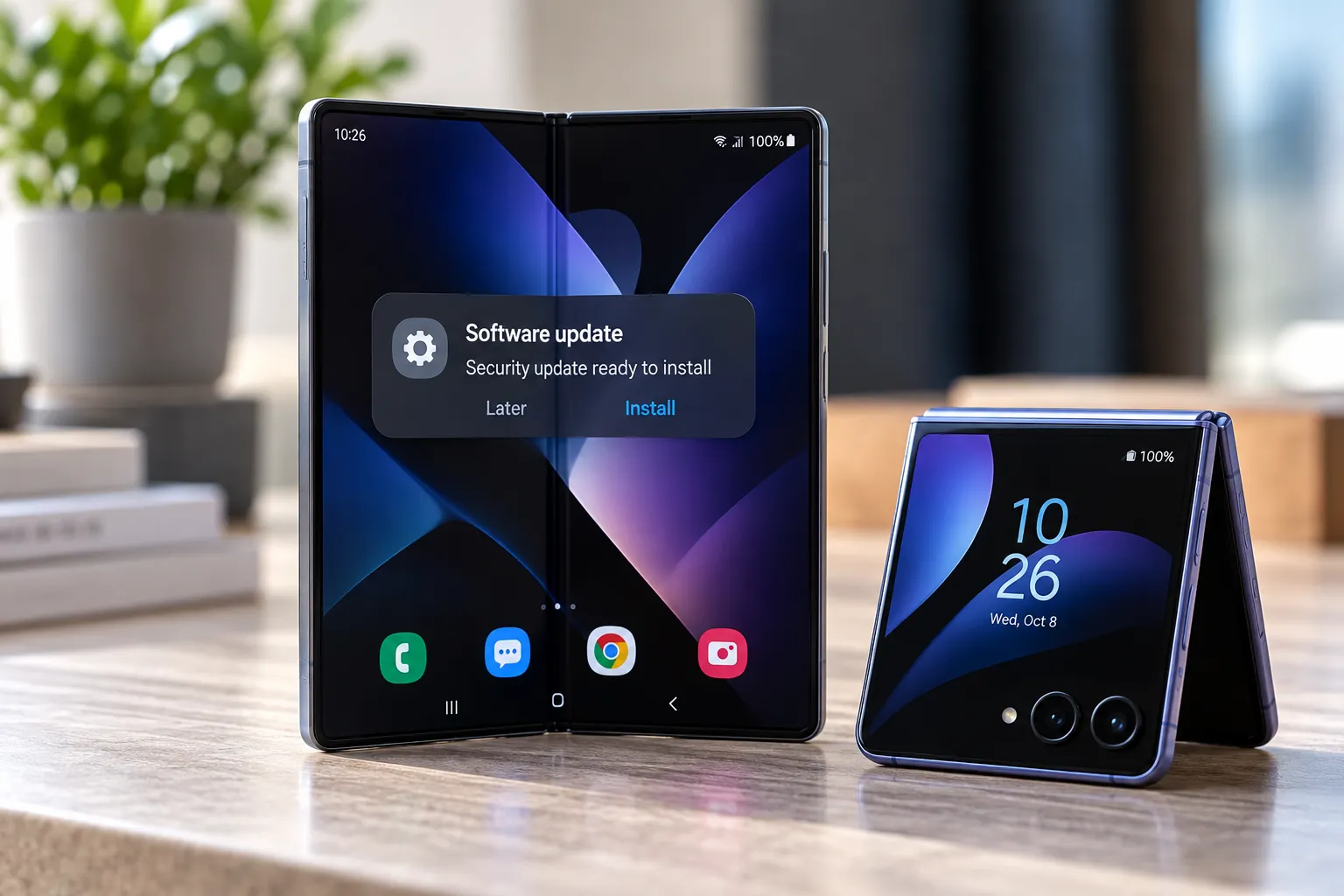
The Galaxy Z Fold 8, Z Fold 8 Ultra, and Z Flip 8 were among the first phones confirmed to ship with stable One UI 9. Android Authority reported that the three foldables launched with the stable software, while older flagships would receive the update later.
Beta access had already reached the Galaxy S26, S25, and S24 lines, as Tech Advisor's July 6 hands-on documented. Android Authority's October coverage describes the Android 17-based update as reaching eligible Samsung phones more broadly, not just the foldable launch lineup.
None of this confirms universal model or regional availability, so check your own settings instead of assuming eligibility based on which Galaxy you own.
If you're unsure which group you fall into, don't rely on a software update notification alone to confirm whether AI Network Guard made it onto your phone. The practical test is whether the hidden Connectivity Labs menu includes the feature.
AI Network Guard settings: how to restrict app internet access on Samsung
The unlock path is consistent across the recent hands-on reports, even if the tap count has shifted between builds:
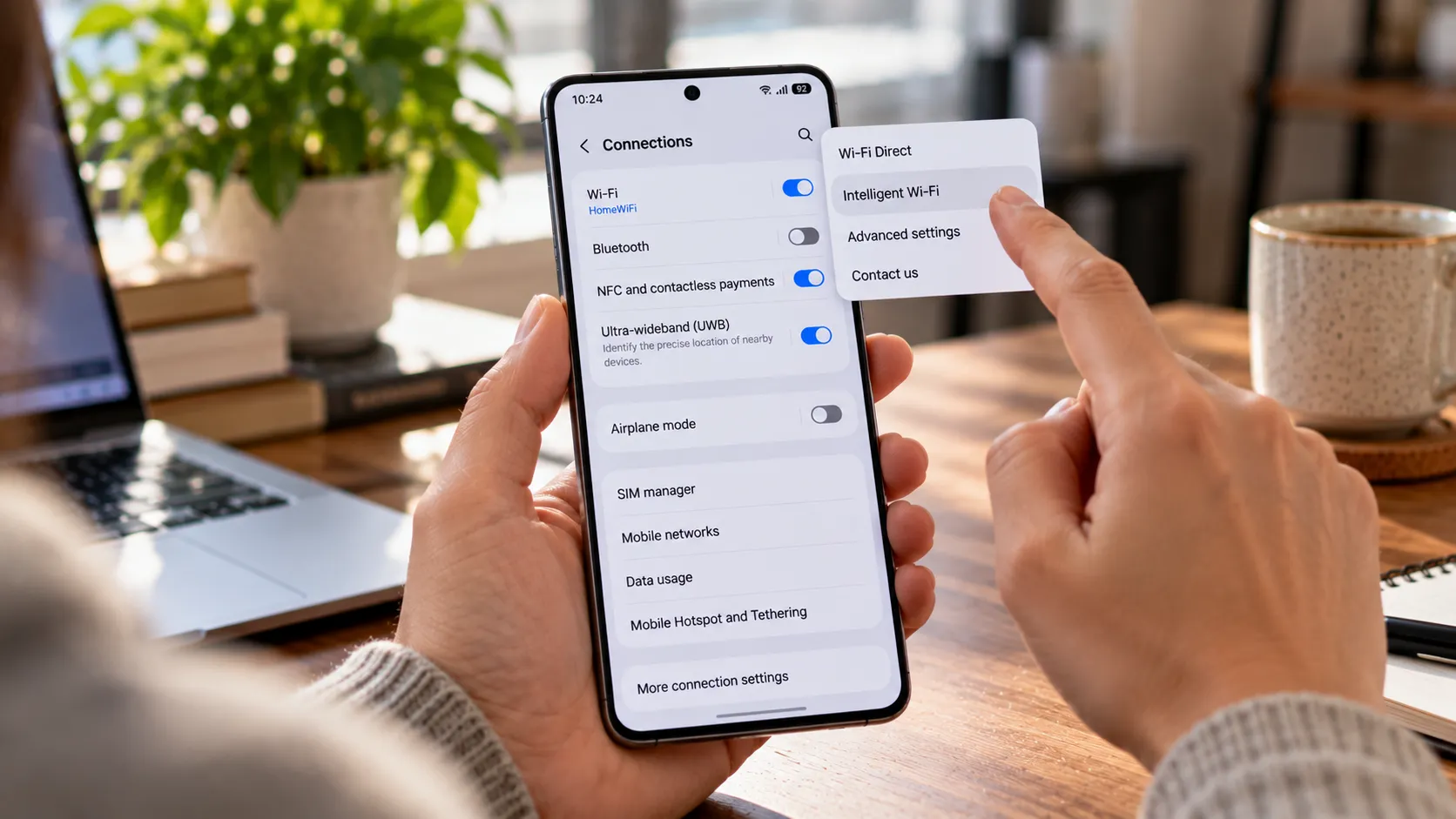
Open Settings > Connections > Wi-Fi.
Tap the three-dot menu in the top corner and select Intelligent Wi-Fi.
Scroll to the bottom and tap Intelligent Wi-Fi repeatedly until a message says Connectivity Labs is enabled. Android Authority and Techritual counted seven taps on their tested builds, while Tech Advisor needed five on an earlier beta.
Open Connectivity Labs, scroll down, and select AI Network Guard.
Tap Set up a Guardian PIN, enter a six-digit PIN, and select Save.
Tap Manage restriction, enter the PIN, then choose Restrict apps.
Select the apps you want to block from accessing the internet and tap Confirm.
Pick a PIN worth remembering. Early beta code referenced PIN setup, confirmation, recovery, and reset screens, with a reset option that also clears configured restrictions. The exact recovery options may differ by software version, so check the instructions shown on your device before resetting anything.
If Connectivity Labs still doesn't show up after repeated taps, the menu may not be available on your current software. Samsung hasn't published support documentation confirming the feature's availability and tap count across every model and build. Check for a software update, then repeat the sequence rather than assuming it's missing permanently.
Test AI Network Guard on an offline-capable app before trusting it
Don't restrict anything you actually rely on until you've run this check:
Turn on airplane mode and open the app you're considering. If it still works normally, such as a calculator, file manager, or video player with files already downloaded, it's a reasonable candidate. Remember that airplane mode can leave Wi-Fi available, so make sure Wi-Fi is also off for this test.
Turn airplane mode off, then restrict that same app inside AI Network Guard using the steps above.
Reopen the app and check that it behaves normally and that any ads it used to show no longer appear.
If syncing, login, or content loading breaks, undo the restriction right away. Android Authority points to the Backdrop wallpaper app as an example that fails to load content once its connection is cut, a useful preview of what needing to be online looks like in practice.
You may also see an Access Blocked notification when a restricted app attempts to connect in the background. Android Authority observed this during testing, including when an app tried to download advertising content.
What this cannot block
Network Guard prevents restricted apps from fetching new ads while their connection is blocked. It doesn't necessarily force an app to discard whatever it cached before the restriction went on, and the available reporting doesn't establish whether an app can still display a promotion or banner it already downloaded.
A leftover ad after restricting an app isn't necessarily proof the toggle failed. It might be content the app already had stored locally.
The same network restriction also prevents the app from transmitting data through the blocked connection while it's active. That's worth knowing if you're hoping for a privacy benefit, but it isn't the same as independently verified tracking protection.
Blocking the connection doesn't erase data the app already collected, and it doesn't affect anything transmitted before the restriction was enabled. It also doesn't establish that every possible form of data sharing or background activity has been prevented. Treat it as a network-access restriction, not a complete privacy tool.
What not to restrict with AI Network Guard
Skip messaging, social, streaming, cloud-backup, and navigation apps when you need their online features. These rely on a live connection for core functions, so restricting them can stop feeds, syncing, messages, map updates, or backups instead of just trimming ads.
The available hands-on reporting also doesn't establish whether restrictions behave identically on Wi-Fi and mobile data in every case. That matters because a restriction affecting only one connection type could allow requests when the app switches networks.
Test on something nonessential first, and check behavior on both Wi-Fi and mobile data if you want to confirm the restriction applies to each.
Use Downtime to schedule distraction blocking automatically
Downtime sits within AI Network Guard's settings and applies network restrictions on a schedule instead of permanently. It uses configurable start and end times and is built around the feature's original purpose: blocking distracting apps during work or study hours.
To find it, open AI Network Guard, tap the three-dot menu, select Advanced Settings, and then choose Downtime. Tech Advisor's October 19 guide documents this route.
One limitation is worth knowing before building a routine around it. On the beta build Tech Advisor tested in July, Downtime applied the same schedule every day, with no way to set separate rules for weekdays and weekends.
That can be inconvenient if you want stricter limits during the workweek and looser restrictions on weekends. Confirm whether the same-schedule-only limit still applies on your current stable build before relying on it daily, since the original test ran on an earlier beta.
What to do now
Check whether your phone has One UI 9, then follow the tap sequence under Settings > Connections > Wi-Fi to see if Connectivity Labs appears.
Test AI Network Guard on one nonessential, offline-capable app before restricting anything with a login, feed, or sync function attached to it. If the app still works and stops loading new ads, the restriction may be useful without needing a separate ad blocker.
If you want scheduled limits instead, check the Downtime settings and confirm whether the available scheduling options fit your routine.







Comments
Be the first, drop a comment!