



Most Galaxy tablet problems, including freezing, laggy apps, or a screen that stops responding, don't need a factory reset.
Samsung recommends restarting the device first for temporary freezes and responsiveness problems. A normal restart and a force restart both reboot the tablet without deleting photos, apps, accounts, or other personal data.
The mistake to avoid is jumping straight to Settings > General management > Reset when a tablet starts acting up. Factory reset is a last-resort troubleshooting step because it erases the tablet.
Start here based on what the tablet is doing:
Screen responds, but the tablet is slow or glitchy: Use a normal restart.
Screen is frozen or won't respond to touch: Use a force restart.
The problem keeps returning after a restart: Check for updates, storage and problem apps.
The tablet still misbehaves: Try Safe mode and Samsung diagnostics before considering a factory reset.
Soft reset, force restart, or factory reset: what's the difference?
A normal restart, sometimes called a soft reset, shuts Android down and starts it again.
A force restart does essentially the same thing when the touchscreen or operating system isn't responding. It uses the physical buttons to make the tablet reboot.
Neither method deletes your stored data.
A factory reset is different. It removes personal data and installed apps and returns the tablet to its default software state.
That distinction is the logic behind the troubleshooting order: use the non-destructive options first.
How to restart a Samsung Galaxy tablet without losing data
A normal restart is the first thing to try for lag, minor glitches, or apps behaving strangely.
The most universal method on current Galaxy tablets is:
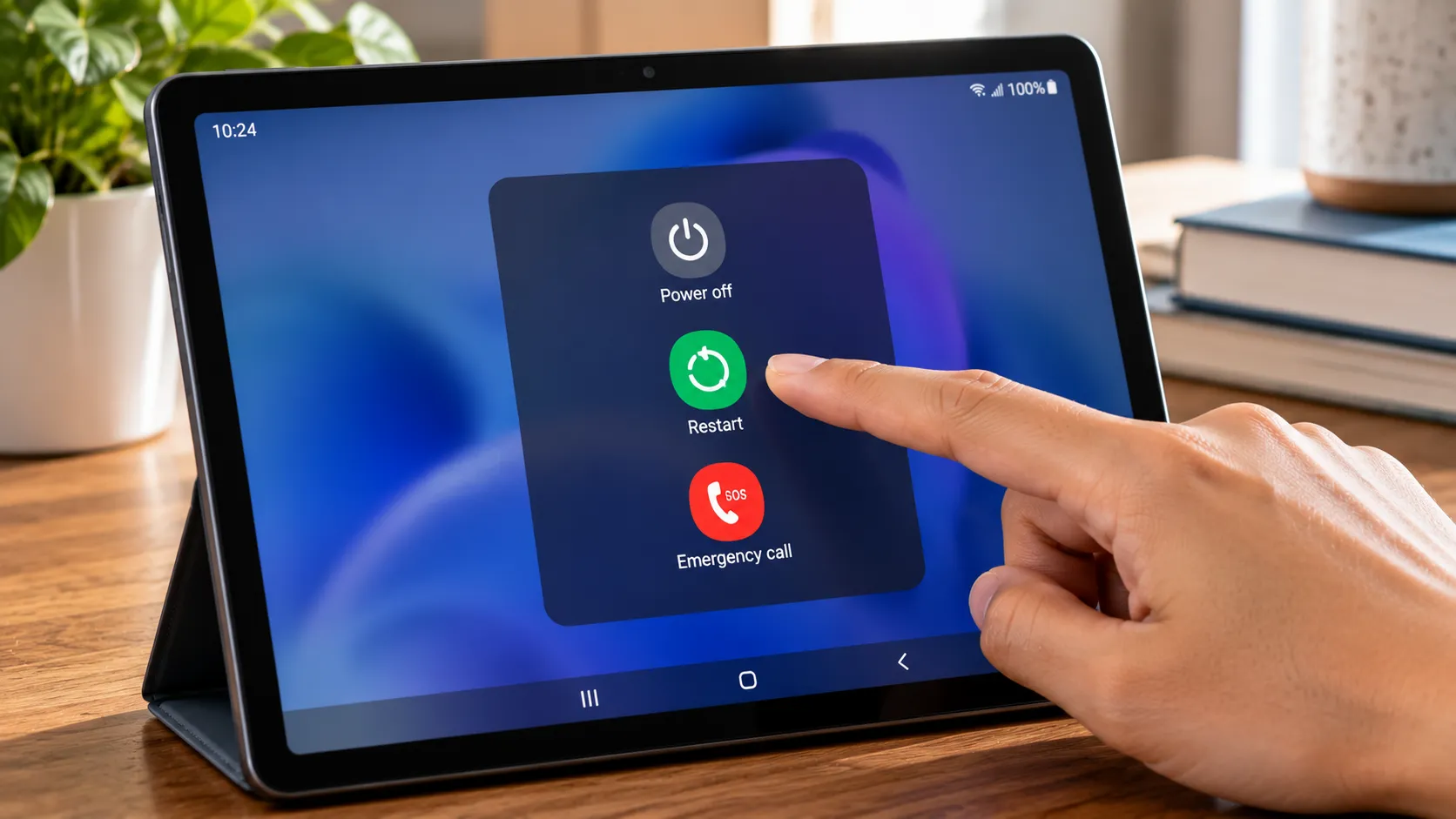
Swipe down from the top of the screen to open the Quick panel.
Swipe down again if needed to expand it.
Tap the Power icon.
Tap Restart.
Tap Restart again to confirm.
Samsung also lets you open the power menu by holding the Side button and Volume Down button together for a few seconds, then tapping Restart.
This avoids confusion on Galaxy models where holding only the Side button launches Bixby or another assigned function.
A normal restart closes running apps and reloads the operating system without deleting your files.
Samsung's current support guidance recommends restarting Galaxy phones and tablets for minor freezes and temporary problems.
How to reboot a frozen Samsung tablet
If the touchscreen stops responding and you can't reach the power menu, use a force restart.
Press and hold the Side button and Volume Down button at the same time.
Keep holding them for more than seven seconds.
Continue holding until the screen turns off and the Samsung logo appears.
Release the buttons and let the tablet restart.
Samsung notes that the restart can sometimes take longer, so don't release the buttons simply because nothing happens in the first few seconds.
A force restart does not erase stored data.
If the tablet opens Maintenance Boot Mode instead of Android, use the Volume buttons to highlight Normal Boot, then press the Side or Power button to select it.
Samsung's current troubleshooting instructions confirm both the force-restart combination and the Normal Boot procedure.
What to check if restarting doesn't fix it
If the tablet starts normally but soon freezes or slows down again, don't keep repeating the force-restart combination.
Check the cause instead.
Install pending software updates
Samsung recommends keeping Galaxy devices updated for performance, stability and compatibility.
On devices running One UI 8.0 or earlier:
Settings > Software update > Download and install
On One UI 8.5 or later:
Settings > Software update > Check for updates
Menu wording can vary slightly by model and software version.
Close unnecessary apps and check memory
Open the Recent apps screen and close apps you're no longer using.
You can also go to:
Settings > Device care > Memory
Then use Clean now where available.
Samsung says low available memory and excessive background activity can contribute to slow or unresponsive behavior.
Check whether only one app is causing the problem
If the freezes happen only inside one app:
Update the app.
Restart the tablet.
Clear the app's cache if appropriate.
Reinstall the app if the problem continues.
If the entire tablet freezes across multiple apps and system menus, move on to Safe mode or Samsung diagnostics.
Try Safe mode before a factory reset
Safe mode starts the tablet without third-party apps running normally, which can help determine whether an installed app is causing repeated freezes.
To enter Safe mode on many current Galaxy tablets:
Open the power menu.
Touch and hold Power off.
Tap Safe mode when it appears.
Use the tablet for a while.
If the freezing disappears in Safe mode, a recently installed or updated third-party app is a likely cause. Uninstall suspicious or recently added apps one at a time and test again.
If the problem continues even in Safe mode, the cause is less likely to be an ordinary third-party app.
Restart the tablet normally to leave Safe mode.
Samsung recommends Safe mode as part of its own troubleshooting for recurring freezes and unexpected behavior.
What if the tablet won't turn on?
A tablet that won't power on at all is different from one that's simply frozen.
Start by connecting it to a compatible charger and giving it time to charge.
Then try the same force-restart combination:
Side button + Volume Down
Keep holding until the device restarts.
If the tablet still shows no sign of life, Samsung recommends moving into charging and hardware troubleshooting rather than repeatedly forcing restarts.
A completely dead screen can point to the battery, charging hardware, display, buttons, or another hardware problem.
When a factory reset actually makes sense
A factory reset should come after ordinary troubleshooting, not before it.
Samsung's current support guidance describes factory reset as a last resort after other troubleshooting steps have failed.
It can make sense when:
Persistent software problems continue after restarting, updating and testing in Safe mode.
You're selling or giving away the tablet and want to remove personal data.
You're dealing with malware or software corruption that hasn't been resolved by less destructive steps.
Samsung Support directs you to reset as part of troubleshooting.
Before resetting:
Back up important files.
Make sure you know the Google and Samsung account credentials associated with the tablet.
Charge the tablet sufficiently to complete the process.
Remove an SD card before selling or giving the tablet away if you don't want the card included.
Don't assume a factory reset will repair a hardware fault.
Know about Google Device Protection before resetting
Adding a Google Account and setting a screen lock enables Google Device Protection on supported Galaxy tablets.
If the tablet is reset through Recovery Mode or another unauthorized-looking reset method, setup may require a Google Account that was previously synced with the tablet.
Samsung explains that this protection is designed to prevent someone from stealing a device, resetting it and setting it up as their own.
If you're selling or giving away a working tablet, reset it through Settings after removing accounts as appropriate rather than relying on Recovery Mode.
Samsung says resetting from Settings avoids triggering Google Device Protection in the same way a Recovery Mode reset can.
What about Recovery Mode?
Recovery Mode is useful when Android can't boot normally or when Samsung Support specifically directs you to use it.
Entering Recovery Mode alone doesn't erase the tablet. Data is erased only if you deliberately choose Wipe data/factory reset and confirm the reset.
The exact way to enter Recovery Mode can vary by Galaxy tablet model and software version.
Because of those differences, check Samsung's instructions for the exact model rather than assuming one USB-cable or button combination applies to every recent Galaxy tablet.
If the device is stuck at the Samsung logo or caught in a boot loop, work through Samsung's boot troubleshooting before treating factory reset as the automatic next step.
What if the tablet is lost?
If the tablet is missing rather than malfunctioning, use a device-finding service instead of thinking of it as a normal troubleshooting reset.
Current Android devices use Google Find Hub, which can locate, secure, or remotely erase an eligible device.
Samsung also provides Samsung Find and SmartThings Find for compatible Galaxy tablets.
Remote erasure permanently deletes local data and should be reserved for situations where you don't expect to recover the tablet.
The device generally needs power, an account configured for the service, and network connectivity for remote commands such as erasure.
Keep in mind that removable SD-card handling can differ between services and devices, so don't rely on a remote wipe as a guarantee that every removable card will be erased.
What to do next
If the screen responds, start with a normal restart.
If the tablet is frozen, hold Side + Volume Down until it restarts. Samsung currently recommends holding the combination for more than seven seconds on an unresponsive Galaxy device.
If the problem comes back, update the software, check memory and storage, isolate problem apps and try Safe mode.
Save factory reset for persistent software problems that survive those steps or for situations where the tablet needs to be deliberately wiped.
A restart and a force restart are both designed to get the tablet running again without touching your personal data. A factory reset is the point where that changes.



Comments
Be the first, drop a comment!