



One UI 9 missing Wi-Fi icon: Samsung explains two separate causes
If your One UI 9 missing Wi-Fi icon has you wondering whether your Galaxy phone is actually losing its connection, Samsung says the real explanation splits into two unrelated problems, and only one of them is a genuine software bug. A confirmed Good Lock QuickStar defect mismaps which icon a status bar toggle controls, and Samsung hasn't given it a fix date, Trusted Reviews reported today. The second cause, longer date formats crowding the status bar, isn't a bug at all by Samsung's own account, and it comes with a workaround you can try right now.
A missing icon and a dead Wi-Fi connection aren't the same thing, and mixing them up sends troubleshooting down the wrong path. Here's the order worth checking: date format first, Good Lock second, and actual connectivity trouble only if neither explanation fits.
What Samsung has confirmed, and what's still unconfirmed
Samsung has acknowledged a status bar icon bug affecting some Galaxy devices on One UI 9, and says developers have identified the issue and are preparing improvements, according to Trusted Reviews. That much is settled. What's missing is almost everything that would show how widespread the problem actually is.
Samsung's statement doesn't name which models, software builds, or regions are affected, per Trusted Reviews. There's no way yet to tell whether this is a narrow Good Lock edge case or something touching a wider slice of the One UI 9 rollout.
Fixing the mapping bug requires changes to the underlying platform software rather than a routine app patch, which is why there's no release timeline attached to it, Trusted Reviews reports. Platform-level changes simply move slower than app updates, and that gap explains most of Samsung's vagueness on timing.
One UI 9 Wi-Fi icon missing after update? Check the date format first
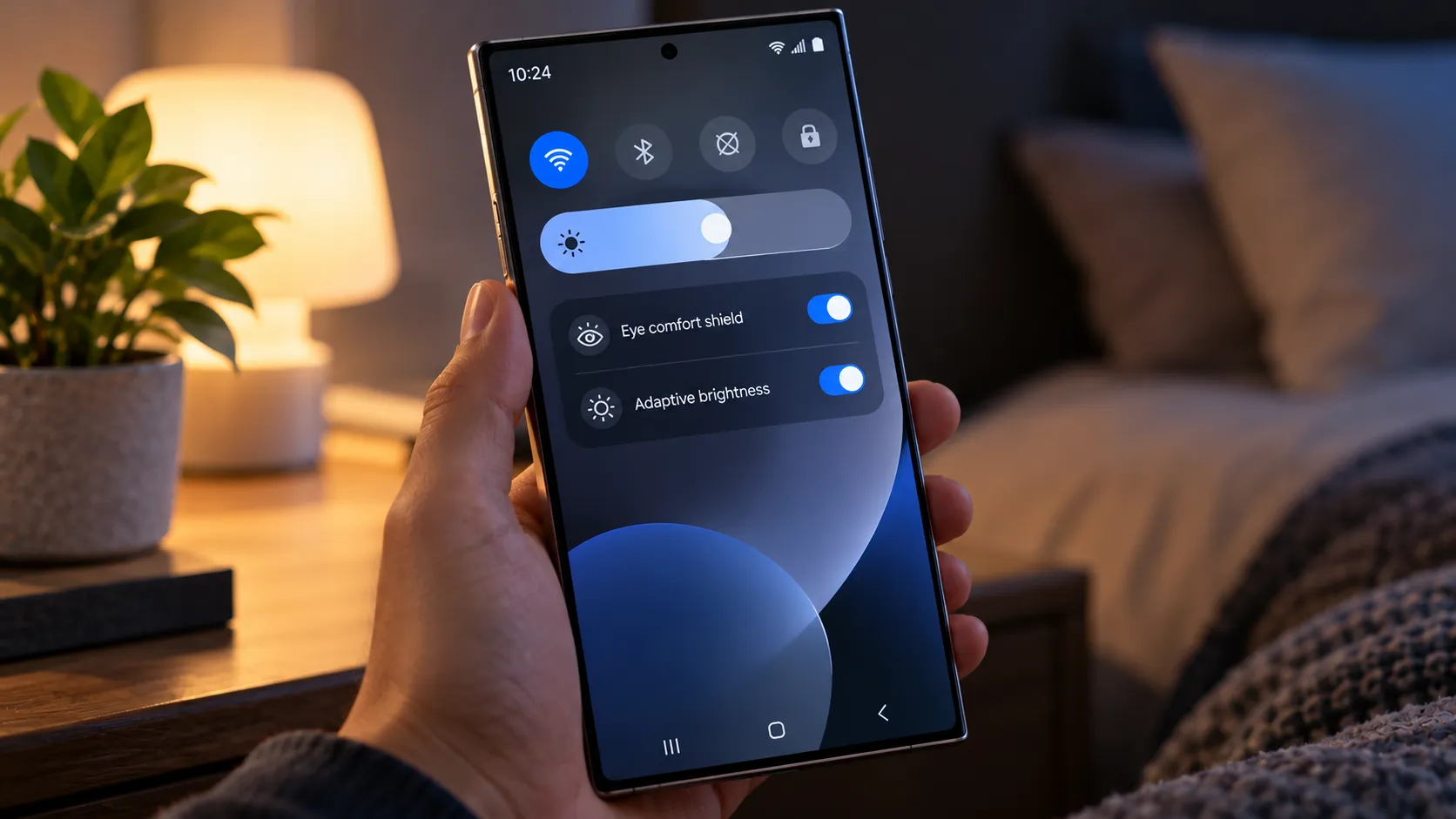
The second explanation has nothing to do with QuickStar. Samsung says a longer date format can crowd the status bar and leave no room for other indicators, including the Wi-Fi and alarm icons, according to Trusted Reviews. In this scenario the icon isn't disabled; it's getting squeezed out by the date text sitting right next to it.
Samsung's stated fix is switching to a shorter date format, which should free up enough room for the missing indicators to return, Trusted Reviews notes. The report doesn't spell out the exact settings path or which formats trigger the crowding, so treat this as Samsung's stated explanation rather than a verified menu route, and compare your own date and time display settings against it.
This fix costs nothing and requires no software update. Checking date format and QuickStar settings before suspecting a connection problem is the guidance Samsung itself has given, per Trusted Reviews.
If you use Good Lock, QuickStar status bar icons may be mismapped
The other cause traces back to Good Lock's QuickStar module, the tool that lets users customize which indicators appear in the status bar. A Galaxy user on Samsung's South Korean community forum reported that QuickStar was controlling the wrong icons entirely after installing One UI 9, Trusted Reviews reports.
In the example described, enabling Do Not Disturb unexpectedly restored a missing Wi-Fi icon, while disabling the network indicator toggle made the Wi-Fi icon disappear instead, according to Trusted Reviews. That points to a control-mapping problem, not proof that the connection itself changed. A video shared alongside the report reportedly showed several other icon settings producing results that didn't match their labels, which suggests the mismapping isn't limited to the Wi-Fi toggle.
Samsung's Good Lock support team confirmed that developers have identified the issue and are preparing improvements, Trusted Reviews reports. As with the underlying bug, the fix depends on platform-level changes still under review, which is why no release date exists yet.
How far this extends beyond QuickStar users isn't established in the reporting. If you don't have QuickStar installed, this explanation doesn't apply to you, and installing Good Lock purely to chase a missing icon isn't something the reporting supports as a fix. The practical check: open the module and see whether the toggle labeled for your missing icon actually controls that icon. A mismatch lines up with the acknowledged bug, and there's no user-side fix for it yet, only Good Lock's promised update.
What if the icon is gone and Wi-Fi actually seems unreliable?
That's a separate question from the icon behavior above. A Galaxy S26 Ultra owner posted on Samsung's Korean community forum earlier this week describing weak Wi-Fi reception after updating to One UI 9, even standing right next to the router in a spot where the connection had always worked fine before (Samsung Members).
The user's reported workaround was turning off the phone's Intelligent Wi-Fi setting, which automatically switches the device to mobile data, saying that disabling it resolved the problem for the time being, per the same forum post.
Nothing in Trusted Reviews' coverage of the QuickStar or date-format issues ties this connectivity complaint to either explanation, and the forum post is a single user account rather than evidence of a platform-wide defect. If your Wi-Fi icon comes back after checking date format and QuickStar settings but the connection still feels slow or drops out, treat that as a separate, unconfirmed issue. Try standard troubleshooting, rebooting the phone and router, checking the Intelligent Wi-Fi toggle, before assuming it's related to the icon bug.
Where this leaves One UI 9 users
None of this reporting points to a device-wide hardware or network-stack defect. Date-format crowding has a reported workaround that costs nothing and needs no update. The QuickStar mapping bug has no fix timeline, and the Wi-Fi performance complaint on Samsung's Korean forum remains an isolated report with no confirmed link to either icon issue.
Check your date format and QuickStar settings first before assuming anything on your phone is broken. Only dig into connectivity troubleshooting, starting with a reboot of the phone and router, if Wi-Fi performance is still genuinely degraded once the icon itself has returned.



Comments
Be the first, drop a comment!