



How to update Samsung apps after a One UI update
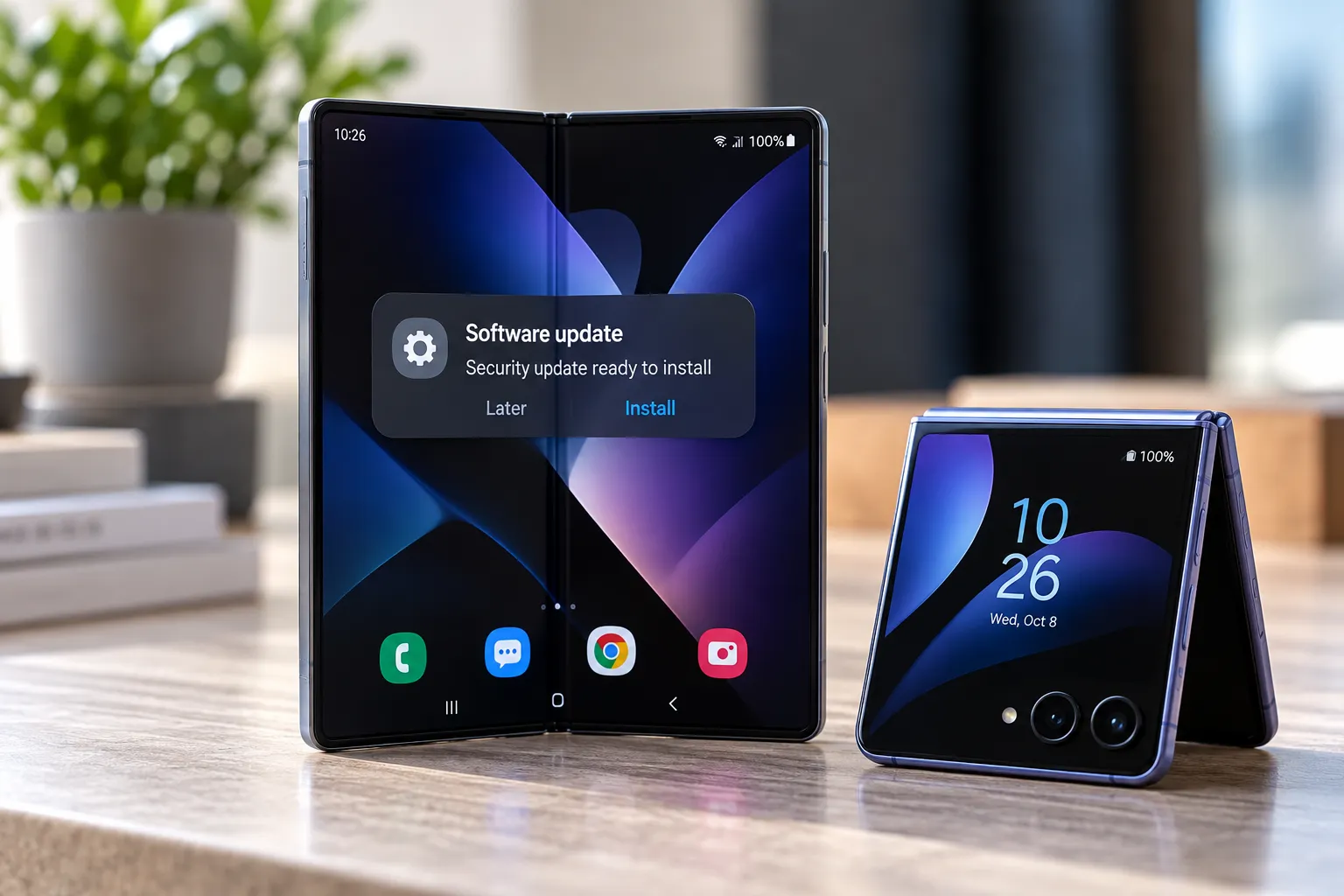
Finished installing a One UI update? The "Software Update Complete" notice only confirms the operating system installed. It says nothing about whether Google Play Store or Galaxy Store have caught up too, which is why knowing how to update Samsung apps after a One UI update means checking both stores manually instead of trusting that one notification to cover everything.
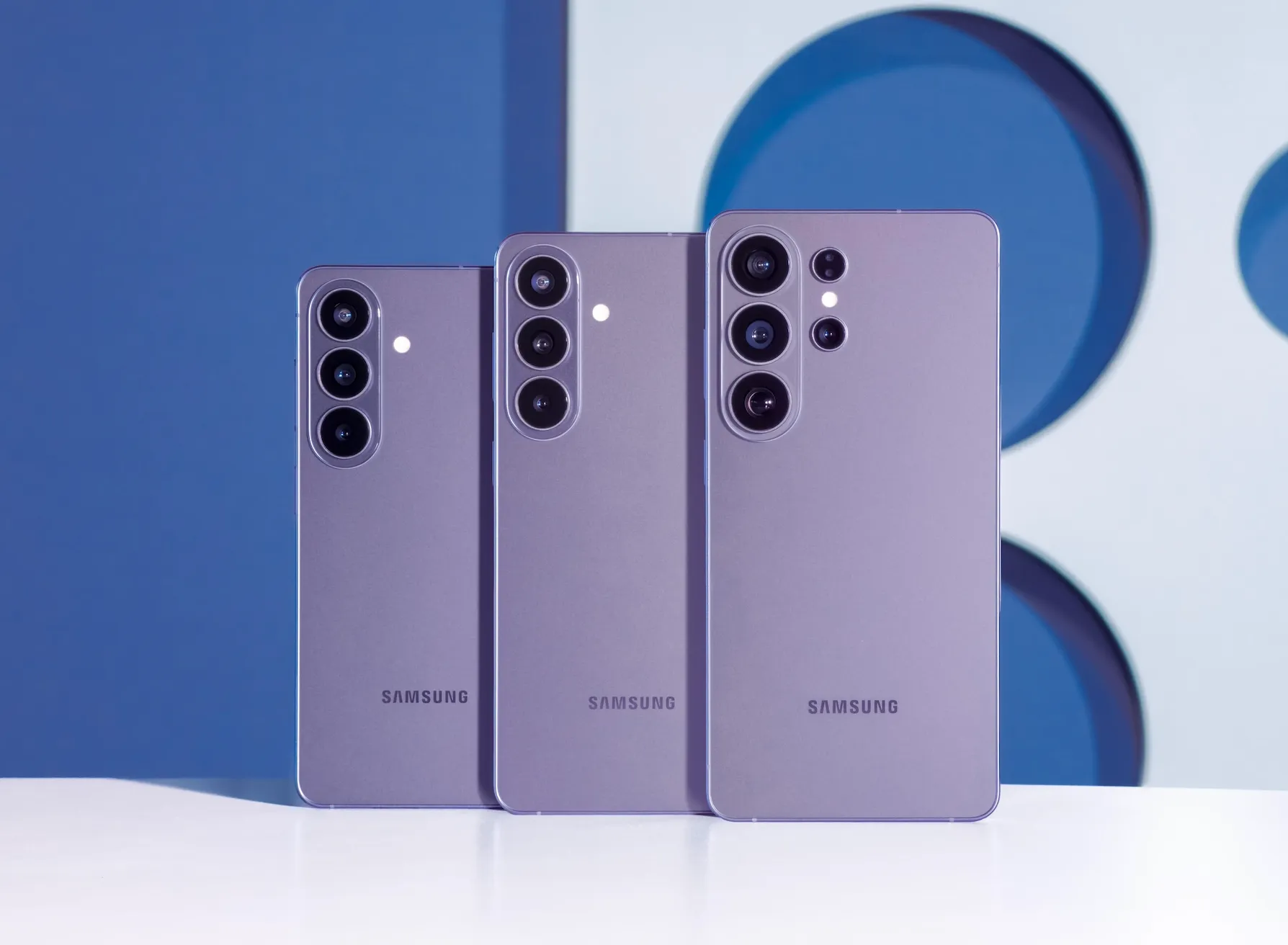
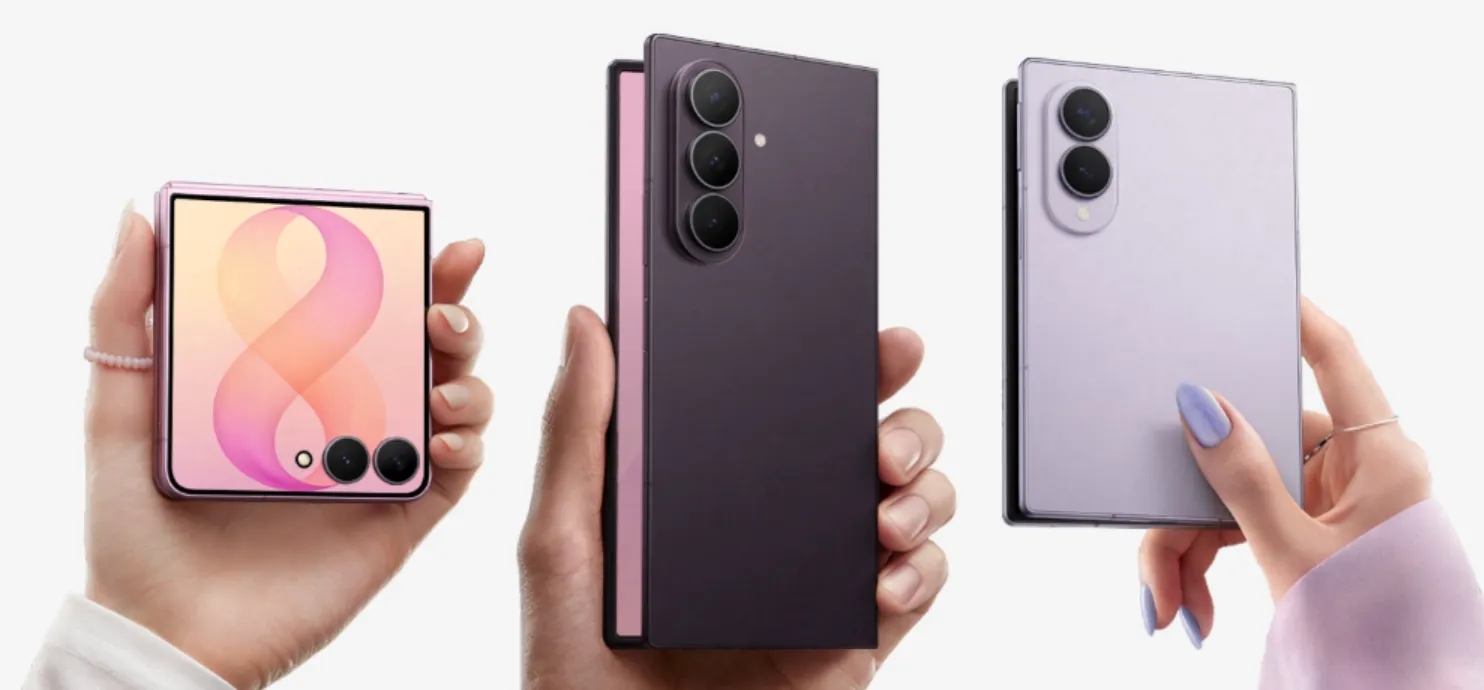
The rollout itself hasn't landed evenly, which complicates any single checklist. SamMobile reported that Samsung's One UI 9.0 beta reached the Galaxy S24 series about two months ago, ahead of the Galaxy Z Flip 7 and Galaxy Z Fold 7, even though both foldables were already named in Samsung's own beta expansion plans (SamMobile). Separate Samsung Members posts from about two weeks ago describe a batch of app updates landing on a Galaxy S26 Ultra running One UI 9.0 (Samsung Members).
Because rollouts stagger by device and program status, what follows describes what these reports actually document, not a universal fix that applies the moment any Galaxy phone finishes updating.
How to update apps on a Galaxy phone
Two stores need separate attention after a One UI update: Galaxy Store for Samsung's own system apps, and Google Play Store app updates on Samsung phones for everything Google manages. Neither gets touched by the OS install itself, so both need a manual pass.
Open Galaxy Store first. If it prompts an update to itself, install that before checking anything else, since Samsung periodically revises the store app's own interface. About five weeks ago, Samsung shipped Galaxy Store version 6.6.18 with a redesigned layout that moved the Menu icon out of its old top-left spot into a bottom floating navigation bar next to Apps, Games, and My Galaxy (SamMobile). A Samsung Members post from about three months ago had already previewed a similar layout under version 6.6.18.12, describing a pill-shaped bottom navigation bar and a push toward a unified One UI 9 look across Samsung's own apps (Samsung Members). Commenters on that same thread asked whether the redesign was limited to devices on One UI 9, a question the post itself never resolves.
Once Galaxy Store is current, look for an Updates section, typically reached through its menu, to find pending updates to Samsung system apps. In Play Store, the equivalent path is the profile icon, then Manage apps & device, then Update all, which covers Google-distributed apps and shared components rather than anything Samsung ships directly.
SamMobile reported that the Galaxy Store redesign is rolling out to eligible devices on both One UI 8.5 and One UI 9.0 globally, but on a staggered basis, so the Menu icon's exact position still depends on which Galaxy Store build has actually reached a given phone (SamMobile). A phone that hasn't gotten that update yet will still show the old top-left layout, and that's expected, not a sign of a broken install.
Why a software update doesn't update every app
Samsung's system apps and Google-managed components move on their own release schedules, separate from whatever One UI version is installed, which is why a completed OS update doesn't sweep up everything else on the phone. A Samsung Members post from about two weeks ago lists Samsung Call, Samsung Phone, Samsung Calendar, Samsung Cloud Assistant, and Multi Control as apps that received their own version updates around the same time as One UI 9.0 landed on a Galaxy S26 Ultra, down to specific builds like Samsung Phone 16.3.51.41 and Samsung Calendar 12.8.01.0 (Samsung Members). A separate Samsung Members post from around the same week also lists Samsung Health among updated apps, alongside Samsung Cloud Assistant, Samsung Members, and Multi Control, though it doesn't tie Samsung Health to that same S26 Ultra device context (Samsung Members).
Both are user-reported rollout logs tied to individual devices, not a confirmed or exhaustive roster of what updates alongside any given One UI release. Neither post says whether other Galaxy models got the same batch of apps, a different mix, or nothing at all during that window.
TalkBack offers one documented example on the Google side of this split. SamMobile's coverage of the One UI 9.0 beta changelog states that Samsung and Google have unified their TalkBack code, so updates to the accessibility feature can now ship through a standalone Play Store app instead of waiting on a system update (SamMobile). That's Samsung's own beta changelog language as reported by SamMobile, tied to a beta build on the Galaxy S24 series specifically, not confirmation of how every accessibility feature behaves once One UI 9.0 reaches stable release on other devices.
What's confirmed, and what an empty updates list actually means
A handful of specific points hold up across these reports. Galaxy Store version 6.6.18 moved the Menu icon for eligible devices starting about five weeks ago, following a similar redesign Samsung Members users had spotted under an earlier build roughly three months ago (SamMobile; Samsung Members). Samsung's own One UI 9.0 beta changelog states TalkBack can now update through Play Store rather than a system patch, specifically on the Galaxy S24 beta (SamMobile). Samsung Members posts document particular apps, including Phone, Calendar, Cloud Assistant, Multi Control, and Health, receiving independent updates around One UI 9.0 on specific devices.
What these sources don't establish matters just as much. The S24 beta rollout and the TalkBack change both come from beta reporting, not confirmation of how stable One UI 9.0 behaves on every eligible model. The app-update lists trace back to two individual devices, not a general claim about what every Galaxy phone receives on the same day.
The evidence also splits cleanly by store. SamMobile's reporting explains that Galaxy Store only prompts an update once Samsung makes it available for that specific device, so an empty Galaxy Store updates list most likely reflects rollout timing rather than a malfunction (SamMobile). Nothing in this research addresses why a Play Store list might come up empty; Google's own staggering logic isn't covered by any of these reports.
After installing a One UI update, open Galaxy Store first and update it if it prompts you, then check its Updates section before moving to Play Store's Update all. An empty list in either store points to rollout timing rather than a broken phone, especially on a device that only recently picked up One UI 9.0. If system apps like Phone, Calendar, or Health still look outdated days later, check back in Galaxy Store again rather than assuming something's wrong. Samsung's own rollout reports show these updates can land on a schedule that has nothing to do with when the OS itself finished installing.
Comments
Be the first, drop a comment!