





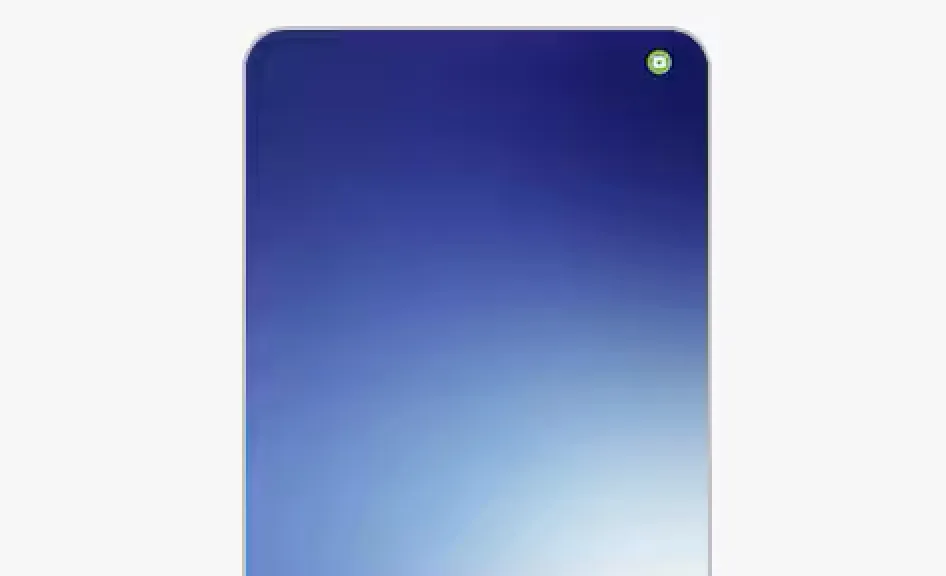
That small green dot in the top-right corner of your Samsung phone is a privacy indicator, not a bug. It means an app is using your camera, microphone, or both. If you also see a faint flicker near the top of the screen during calls, that is usually something else: the proximity sensor.
The green dot is worth checking. The faint call-screen flicker is usually normal.
Samsung says the green dot appears when an app is using the camera or microphone in real time. The feature is available on Samsung devices running Android 12 or later. Older Android versions still had app permissions, but they did not show the same real-time status-bar warning.
A faint flicker near the top of the display is different. On some Galaxy phones, it can come from the proximity sensor used during calls.
Green dot or screen flicker? Check this first
Two questions resolve most cases.
Is the dot green and in the status bar, near your battery and signal icons? That is the privacy indicator. An app is accessing your camera, microphone, or both. Keep reading.
Is it a faint, pixel-scale flicker near the top of the screen, especially during calls or in a dark room? That is likely the proximity sensor. It is usually normal hardware behavior.
The green privacy indicator is a deliberate Android notification. The proximity-sensor flicker is hardware behavior, not a privacy warning.
A quick test helps: switch the call to speakerphone or Bluetooth. If the flicker stops when the phone is no longer near your face, the proximity sensor is the likely cause.
Normal green-dot triggers include the Camera app, video recording, voice typing, voice messages, video calls, and phone calls. Investigate when the dot appears with no obvious camera or mic activity, or when it keeps returning after a restart.
What the green dot means on Samsung phones
The green dot is Android's privacy indicator. It can first appear with a camera icon, a microphone icon, or both, then shrink to a dot near the battery and signal icons.
Android's privacy-indicator documentation says Android 12 and later can show indicators when an app uses camera or microphone data. Android distinguishes between active and recent use: active access includes an app currently using the camera or mic, or one that used it within the past few seconds; recent access can show an app that accessed camera or microphone data during the prior 15 seconds.
That matters because the dot can flag more than the app you are staring at. It is still only an indicator of camera or microphone access, not a full audit of everything an app is doing. If an app triggers the microphone while you are reading email, the dot can appear even though no camera or recorder app is visibly open.
If you do not see the green dot on a Samsung phone, check your Android version and software updates in Settings. The indicator is available on Samsung devices running Android 12 or later.
The warning sign is simple: the dot appears when nothing you recognize should be using the camera or microphone. Do not panic, but do check.
How to see which app triggered the green dot
The fastest check is built in. Google says to swipe down from the top of the screen and tap the green indicator. Tap once to see which app or service is using the camera or microphone; tap again to manage permissions.
For a fuller picture, open the Privacy Dashboard. On many Android phones, it is under Settings > Privacy > Privacy Dashboard; on some Samsung phones, it may appear under Security and privacy. Search Settings for "Privacy Dashboard" if you do not see the same menu path.
On Android 13 and later, the Privacy Dashboard can show app permission use over the past seven days; Android 12 showed a shorter 24-hour view, according to Wired's Android 13 privacy guide. Use that history to spot patterns a one-time green-dot check may miss, such as a game requesting camera access or a social app using the microphone when you do not recognize the reason.
Some system entries are normal. A keyboard may use the microphone for voice typing, and Google Play Services may appear for system-level functions. Treat unfamiliar third-party apps as higher priority than expected system activity.
You can also use Quick Settings tiles to turn camera or microphone access off system-wide. Swipe down twice, look for the Camera access or Mic access tile, and add it through the edit option if it is not already visible.
If the dot persists after you close apps, restart the phone. If it returns after reboot and you cannot identify the app, review camera and microphone permissions, uninstall unfamiliar apps, and run a Google Play Protect scan.
What the green dot does not tell you
The green dot tells you camera or microphone access happened. It does not tell you what an app did with the audio, video, or image data after access was granted. It also is not a network-traffic monitor, clipboard log, or full malware detector.
That limit is important. A navigation app using location, a camera app using the camera, or a keyboard using the microphone for voice input can all be normal. The useful question is not "Did an app access something?" It is "Does this app have a clear reason to access this?"
If the answer is no, change the permission. Set camera and microphone access to "ask every time" for apps that only occasionally need them. Revoke access entirely for apps that have no clear reason to use either sensor.
Why a faint flicker near the screen is different
A faint blinking point near the top of a Galaxy phone is usually not the same thing as the green privacy dot. It can be the proximity sensor, which helps the phone know when it is near your face during a call so the screen can turn off and avoid accidental taps.
The Sun reported in June 2026, citing Samsung guidance, that a faint blinking point on newer all-screen Galaxy models can be normal proximity-sensor behavior, not a sign of a defect.
The same kind of flicker may be more noticeable in a dark room or when accidental-touch protection is active. If it appears only during normal call behavior and stops when the phone is no longer near your face, it is not the same problem as an app using your camera or microphone.
If the screen stays dark when it should wake, or stays lit when the phone is against your ear, check for a blocked sensor before assuming hardware failure. Remove thick screen protectors or cases near the top of the display, clean the area with a soft cloth, and run the proximity-sensor diagnostic in the Samsung Members app if available.
The safe habit: check, then trim permissions
Green dot in the status bar: tap it, identify the app, and investigate anything unfamiliar. Faint flicker near the top of the screen during calls: switch to speakerphone or Bluetooth, and if it stops, treat it as proximity-sensor behavior.
The better habit is a quick permission audit. Open the Privacy Dashboard, look for camera or microphone access you do not recognize, and trim permissions for apps that do not clearly need them. Use "ask every time" for apps that only occasionally need the camera or microphone, and revoke access entirely for apps that have no clear reason to use either sensor.
The indicator is a useful alert, not a complete security system. Regular permission checks, software updates, unfamiliar-app cleanup, and Play Protect scans matter just as much as watching for the dot.




Comments
Be the first, drop a comment!