



![Galaxy Watch9, Graphite, 40mm Bluetooth Smartwatch | AI Assistant, Fitness Tracker, Sleep Coaching and Running Coaching with Heart Rate Tracking [US Version, 2 Yr Warranty]](https://m.media-amazon.com/images/I/61gMNpGYJkL._AC_UY218_.jpg)
![Galaxy Watch9, Silver, 44mm Bluetooth Smartwatch | AI Assistant, Fitness Tracker, Sleep Coaching and Running Coaching with Heart Rate Tracking [US Version, 2 Yr Warranty]](https://m.media-amazon.com/images/I/61ju7DksOnL._AC_UY218_.jpg)
![Galaxy Watch 8 (2025), Graphite, 40mm, Bluetooth Smartwatch | Cushion Design, Fitness Tracker, Sleep Coaching, Running Coach, Energy Score, Heart Rate Tracking [US Version, 2 Yr Warranty]](https://m.media-amazon.com/images/I/61IpkAmVjwL._AC_UY218_.jpg)
4 Galaxy Watch 9 Settings to Enable in Your First 24 Hours
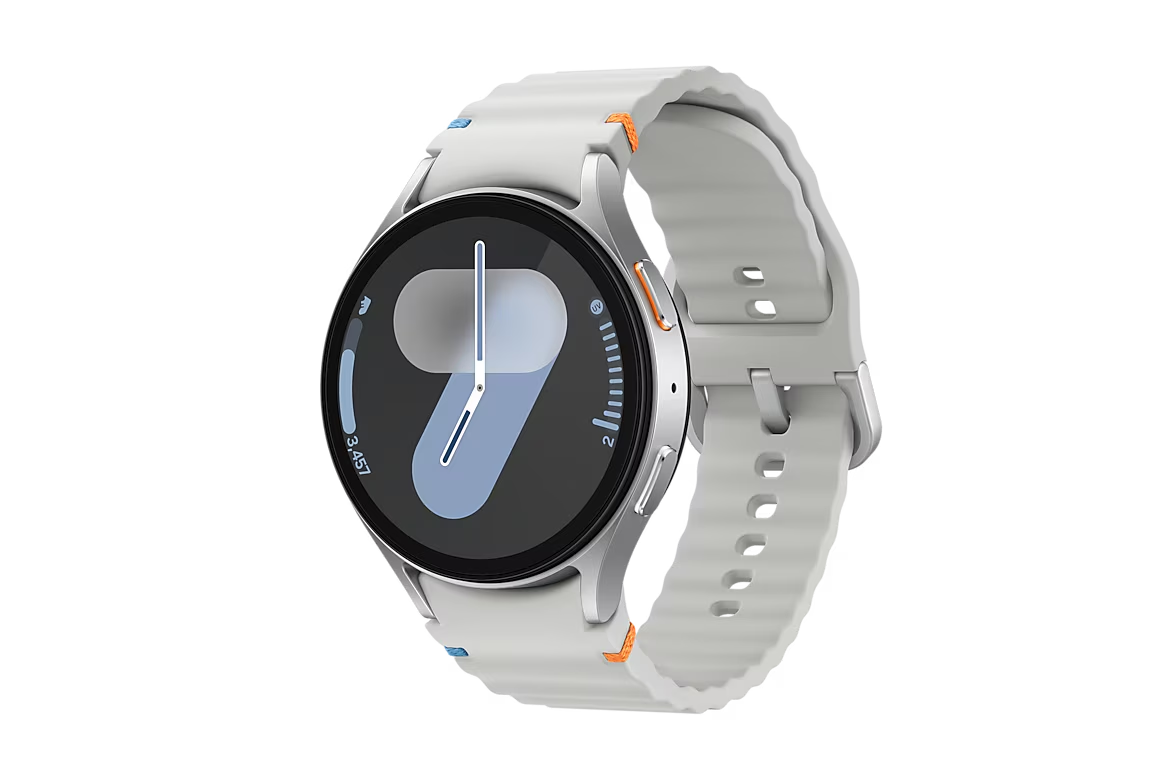
Not every Galaxy Watch 9 health feature behaves the same way out of the box, which is exactly why deciding which Galaxy Watch 9 settings to enable on day one matters. Hard fall detection is a genuine toggle, and it ships off by default, doing nothing until someone switches it on (Samsung Support). Vitals and Sleep Coach aren't toggles in that sense. Vitals needs seven nights of overnight wear to build a baseline before it can flag anything unusual, and Sleep Coach needs at least seven days of wear to gather enough data for personalized coaching (PCMag, last week; Samsung Mobile, over a year ago).
Samsung opened pre-orders for the Watch 9 in select markets on July 22, roughly three weeks ago, with general availability following on August 7, last week (Samsung Newsroom). Samsung markets it as delivering "a new era of effortless health," built for continuous 24/7 wear (Samsung Newsroom). It runs Wear OS 7 with One UI 9 layered on top and requires Android 13 or later on the paired phone (PCMag). That framing holds up reasonably well, but a handful of features need a nudge before they start doing their job.
This guide covers four decisions worth making in the first day of ownership: finishing fall detection setup, starting consistent overnight wear for Vitals and Sleep Coach, deciding how to handle always-on display and charging without losing a night of data, and picking which health metrics show up first. It isn't a menu-by-menu walkthrough. Samsung shifts label wording between software updates, so each section says what to confirm rather than exactly where to tap.
What you need before configuring the Watch 9, and what your phone determines
The watch is managed through the Galaxy Wearable app, and fall detection specifically can only be turned on from there. Pair the phone before anything else (Samsung Support).
Any phone running Android 13 or later works with the Watch 9, and Samsung Health is the app used to view the watch's health data and scores (PCMag). A few features are locked to Samsung's own hardware, though: ECG, blood-pressure tracking, and sleep apnea/snoring detection all require a Galaxy phone specifically, not just any Android device (GadgetCV; PCMag UK).
The available testing confirms Galaxy-phone requirements for ECG, blood-pressure tracking, and sleep-apnea detection. Samsung's documentation doesn't establish the phone requirements for every other feature in this guide, so check the relevant feature in Galaxy Wearable or Samsung Health before relying on it. You may not see the sleep-apnea or blood-pressure options on a non-Galaxy phone; if that's the case, the rest of this checklist still applies as written.
Turning on hard fall detection, and what it actually requires
Fall detection ships disabled and can only be switched on through the Galaxy Wearable app: open the app, head into the watch's settings, and tap the switch next to Hard fall detection (Samsung Support). Flipping that switch feels like the whole job. It's really just the first step.
The toggle alone won't do much, because the feature needs at least one emergency contact on file to have anyone to notify (Samsung Support). Beyond that, two more choices are optional rather than required: automatically texting location to emergency contacts after a fall, and triggering an emergency call, each a separate switch under the same menu (Samsung Support). Sensitivity is a different setting entirely, found under "When to detect falls," and it can be set to Always, During physical activity, or Only during workouts. Always monitors in more situations; the activity-only options limit when the watch looks for falls at all (Samsung Support).
Samsung's fall-detection documentation covers "all Wear OS models" and predates the Watch 9 by roughly four years. The actions above are confirmed; exact on-screen wording may differ slightly on current software.
By the end of this step:
- Hard fall detection is switched on
- At least one emergency contact is listed
- Location sharing and emergency calling are set the way you prefer, on or off
- A sensitivity mode is chosen
This step needs no repeat visits. Check the box once and move on. Vitals and Sleep Coach, by contrast, need seven consecutive nights on the wrist before they have anything to say.
Galaxy Watch 9 health monitoring settings to start on night one
Vitals tracks overnight SpO2, heart rate, heart-rate variability, respiratory rate, and skin temperature, then alerts owners to deviations once it has a seven-night baseline (PCMag; Samsung Newsroom). Sleep Coach needs at least seven days of wear to gather enough data for personalized coaching (Samsung Mobile). There's no separate switch to force Sleep Coach into gear early; the only real action is wearing the watch nightly and checking, morning by morning, that the night actually recorded.
Nothing in the research confirms that a missed or short night resets that seven-day count, so treat one gap as an inconvenience rather than a reason to start over. That's practical advice rather than a documented product behavior, and steady wear still beats sporadic wear.
Even flawless wear doesn't guarantee flawless data. In one PCMag test, the watch stopped collecting overnight readings for more than an hour on two separate nights (PCMag). Galaxy phone owners should also confirm that sleep apnea and snoring detection are active, since that feature only runs with a Samsung phone nearby (PCMag UK; GadgetCV, last week).
The daily action is simple: wear the watch to bed and check the sleep section of Samsung Health the next morning. A successfully recorded night should show a score built from duration, deep sleep, REM sleep, time awake, and sleep latency (PCMag).
By the end of night one:
- The watch has been worn continuously from bedtime to waking
- Samsung Health shows a sleep score the following morning
- Galaxy phone owners have confirmed sleep apnea and snoring detection are active
The best Galaxy Watch 9 settings for battery and overnight tracking
Vitals and Sleep Coach only work if the watch survives a full night on the wrist, so this decision is about giving them a fair shot.
In one PCMag test, the Watch 9 ran 26 hours with always-on display (AOD) enabled versus 41.5 hours with it off, a roughly 15-hour swing that can decide whether the watch survives a full day-and-night cycle (PCMag). Charging speed varied between reviewers: GadgetCV measured about 90 minutes from near zero to full, while PCMag's test, using the included charging stand and an 18W adapter, took 108 minutes (GadgetCV; PCMag). Either way, that's long enough to leave a real hole in overnight data if it's timed badly.
Testing the 40mm model, GadgetCV's reviewer found the watch barely stretched from one morning to the next afternoon, short of two full days on a single charge. That reviewer still kept AOD on rather than switching it off, choosing to charge more often over losing a feature that makes the watch noticeably more usable day to day (GadgetCV). Treat this as a genuine trade-off rather than an automatic "turn it off" call. Samsung's own guidance warns that some health features, especially continuous monitoring, can consume more battery (Samsung Mobile). The 40mm's 390mAh cell is a modest bump from the Watch 8's 325mAh, but in PCMag's testing it hasn't translated into a meaningful jump in real-world runtime (PCMag).
Setup actions:
- Decide on AOD in the watch's display settings based on your priority: roughly 15 extra hours of runtime in one reviewer's test, or an always-visible screen. There's no universally correct answer.
- Choose a recurring slot, such as during a shower or commute, if that fits your routine, so a charge of 90 minutes or more never overlaps with overnight tracking.
- If you have the 40mm model, plan for the possibility of a midday top-up based on the test above. The 44mm carries a larger 445mAh cell versus 390mAh on the 40mm (PCMag), though no test confirms that extra capacity actually extends real-world runtime.
By the end of today:
- Always-on display is set the way you want it
- A daily charging window is chosen outside sleep hours
- 40mm owners have a plan for a possible midday top-up
Settle AOD and a charging window, and the watch has the best chance of recording a complete night rather than a partial one.
A Galaxy Watch 9 setup guide to health dashboard priorities
The Watch 9 introduces three new scores, Fitness Index, Daily Cardio Load, and Heart Health Score, plus a Hearing feature that alerts on unsafe noise exposure, all built into Samsung Health (Samsung Newsroom; PCMag). Not all of them are equally ready on day one.
For general wellness tracking, Fitness Index is worth surfacing first. PCMag's reviewer received an initial score of 39 out of 100, which climbed to 41 as more data accumulated during testing, though that's one reviewer's result rather than a guaranteed timeline for every watch (PCMag). Anyone training regularly might prefer Daily Cardio Load instead: PCMag describes it as guidance on how hard to push a given day's workout without burning out, though how reliably that guidance tracks actual recovery isn't something the available testing establishes (PCMag).
Heart Health Score carries the most setup friction of the three. Its blood-pressure component requires calibration against a separate cuff, and blood-pressure tracking requires a Galaxy phone (PCMag; GadgetCV). Non-Galaxy owners should check whether the base score even shows up before investing time in cuff calibration; the research confirms only that the blood-pressure input requires a Samsung phone, not that the score itself is unavailable elsewhere.
Samsung Health does support reordering dashboard tiles so daily-checked metrics don't get buried behind ones that aren't (GadgetCV). The reviews confirm that the feature exists but don't spell out the exact menu path, so look for a tile-editing or customization option inside the dashboard view and expect a little exploring.
None of these scores replace medical advice. Samsung says as much explicitly for the body-composition readings from its BIA sensor, noting they're for fitness and wellness purposes only, not diagnosis (Samsung Mobile); the same caution is worth extending to these newer scores until Samsung says otherwise.
By the end of this step:
- Fitness Index or Daily Cardio Load is moved near the top of the dashboard
- Hearing alerts are checked, if available on your phone
- Heart Health Score availability is confirmed before attempting cuff calibration on a non-Galaxy phone
Where to focus first
These four settings don't run on the same clock. Fall detection can be configured right after pairing, while Vitals and Sleep Coach won't have anything meaningful to say for a week, no matter how carefully everything else gets set up.
Pair the watch, configure fall detection, choose a charging window, and wear it overnight tonight. Check the first sleep record the next morning, then give Vitals and Sleep Coach a full week before judging their results. Fitness Index, Daily Cardio Load, and Heart Health Score are worth revisiting once that first week of data is in hand, not before.




Comments
Be the first, drop a comment!