



Samsung Messages shut down workaround: switch to Google Messages
Samsung Messages shut down on July 6, 2026. If you're a US Galaxy user on Android 12 or newer, the app can no longer send or receive messages except to emergency numbers, per Samsung's discontinuation notice. The text field is greyed out, and that's a permanent state.
If you're looking for the Samsung Messages shut down workaround, there is one, but it only makes sense as a temporary check before you switch. This guide covers how to fix Samsung Messages greyed out text field issues by switching to Google Messages, when the workaround actually applies, and what tablet and older watch users need to handle separately.
Who this guide is for: US Galaxy phone or tablet users on Android 12 or newer who still had Samsung Messages as their default app, or who want to confirm their message history transferred correctly.
What you need to know first
The shutdown is US-only and version-specific. Devices on Android 11 or older remain unaffected for now, and users outside the US can continue using Samsung Messages, Android Authority reported this week. Not sure which version you're on? Go to Settings > About phone > Software information.
This wasn't a sudden move. Samsung switched Galaxy phones to Google Messages as default starting with the Galaxy S22 series in 2022, stopped pre-installing Samsung Messages entirely in 2024, and the Galaxy S26 launched without it pre-installed and with no option to download it from the Galaxy Store, per Android Authority and Android Police. Yesterday's cutoff was the final step: ending service on older devices that still had the app running.
Your existing messages are not lost. Samsung confirms all conversations transfer automatically to Google Messages, no manual export required, though the process can take up to 24 hours depending on how much history you have.
Why Google Messages is the permanent destination, not just a substitute
Samsung Messages had a structural problem with RCS, the modern messaging standard that replaces SMS with read receipts, typing indicators, proper group chats, and better media sharing. The app depended on individual carriers to build and maintain their own RCS backends, which meant patchy, inconsistent results depending on your network, per Android Police.
Google spotted that problem early. After acquiring Jibe Mobile in 2015, it built a platform that let carriers support RCS without constructing the whole backend themselves. Telecom companies gladly handed off the expense; Google absorbed it. By 2019, Google had enabled RCS for all Google Messages users regardless of carrier or device model, per Android Authority. Today, Google Messages is the only Android app with full RCS support, per PhoneArena. RCS also works cross-platform when iPhone users are on iOS 18 or later, per Samsung Support.
Samsung's stated reason for the switch is accelerating RCS adoption, per SamMobile. That framing is accurate. What you gain is reliable, carrier-agnostic modern messaging. What you may lose are some Samsung-specific organizational features: conversation folders and auto-delete for old texts don't have direct equivalents in Google Messages, and your custom Samsung themes may not carry over, meaning you could be rebuilding that part of your setup from scratch, per PhoneArena. Everything else, your contacts, message history, SMS and MMS, carries over automatically.
How to switch from Samsung Messages to Google Messages
Start this now. The transfer runs in the background, and you want it finished before you need to send something time-sensitive.
Step 1: Open Google Messages or install it. Most modern Galaxy phones already have it. If not, search "Google Messages" in the Google Play Store and tap Install.
Step 2: Set Google Messages as your default SMS app. Open the app. It will prompt you with a "Set as default SMS app" button. Tap it, select Google Messages from the pop-up at the bottom of the screen, and confirm. If that prompt doesn't appear, go to Settings > Apps > Choose default apps > SMS app and select Google Messages from the list, per Samsung Support.
Step 3: Wait for your message history to appear. Conversations should populate automatically. If they're not showing up immediately, give it up to 24 hours before troubleshooting. Large message archives take longer to migrate. If history still hasn't appeared after 24 hours, verify that Google Messages is actually set as the default a missed confirmation at step 2 is the most likely cause.
What to expect during the transition: RCS may pause briefly on pre-2022 devices while switching apps. Standard SMS and MMS keep working the entire time. RCS resumes once both you and the people you're messaging are on Google Messages, per Samsung Support.
Optional cleanup, after confirming your history transferred:
- Touch and hold the Samsung Messages icon on your home screen and tap Remove. This clears the shortcut only, not your messages.
- Touch and hold the Google Messages icon, tap Add to Home, and drag it to your dock for easier access, per SamMobile.
Samsung Messages shut down workaround: when it works and when it doesn't
There's an unofficial method that can temporarily restore Samsung Messages: uninstalling app updates rolls the app back to its original factory version, which can bring basic text-sending back for a short time, Android Authority reported this week.
Skip it if you just want texting to work again. The Samsung Messages temporary workaround is a dead end, not a solution. Use it only if you've already switched to Google Messages and want to verify that a specific conversation transferred correctly before committing to the new app.
Steps (eligible devices only):
- Go to Settings > Apps and find Samsung Messages.
- Tap the three-dot menu and select Uninstall updates.
- Confirm the prompt. The app reverts to its factory version.
- Open Samsung Messages. Basic text sending should work again.
Check your device before trying this:
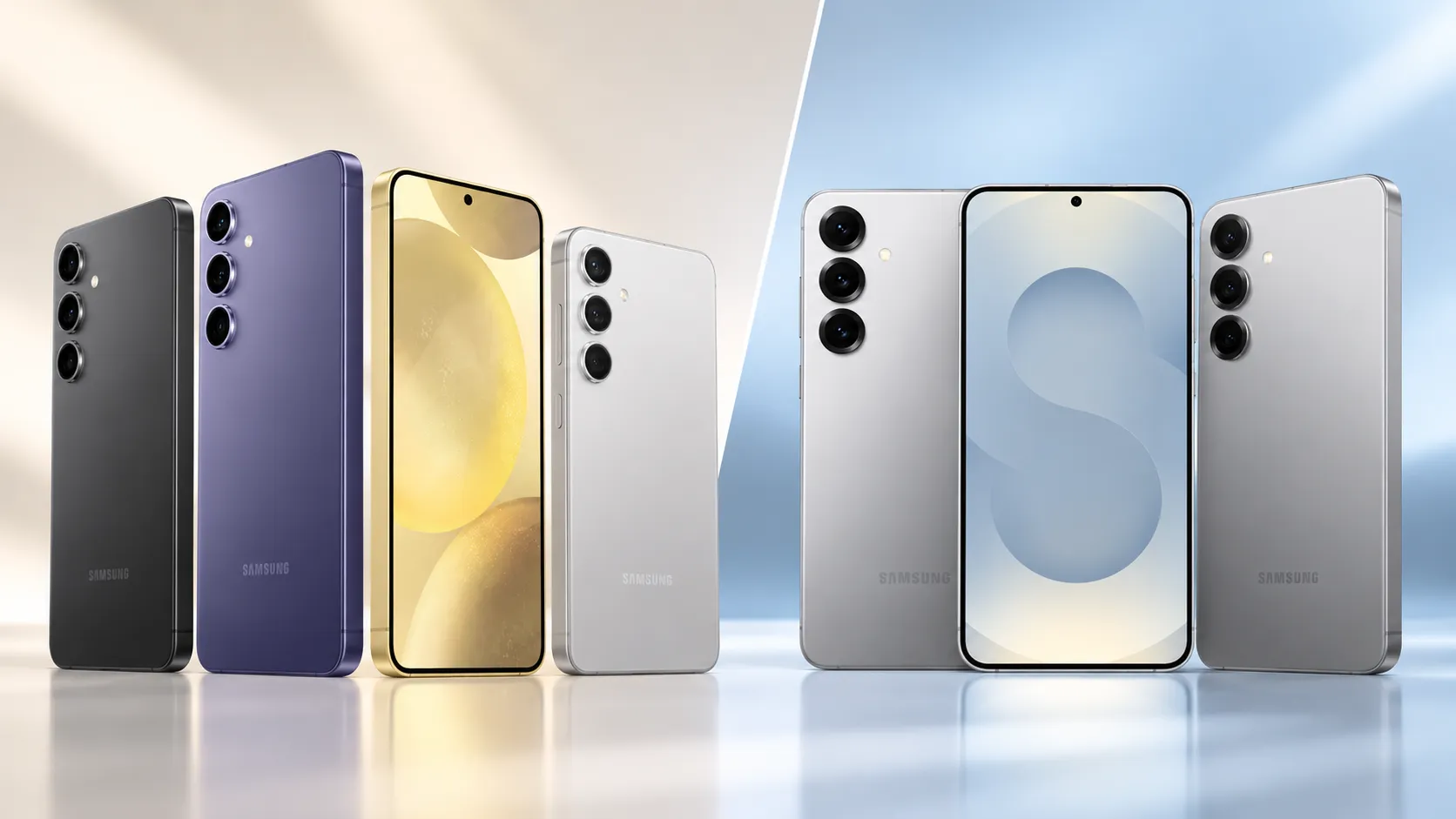
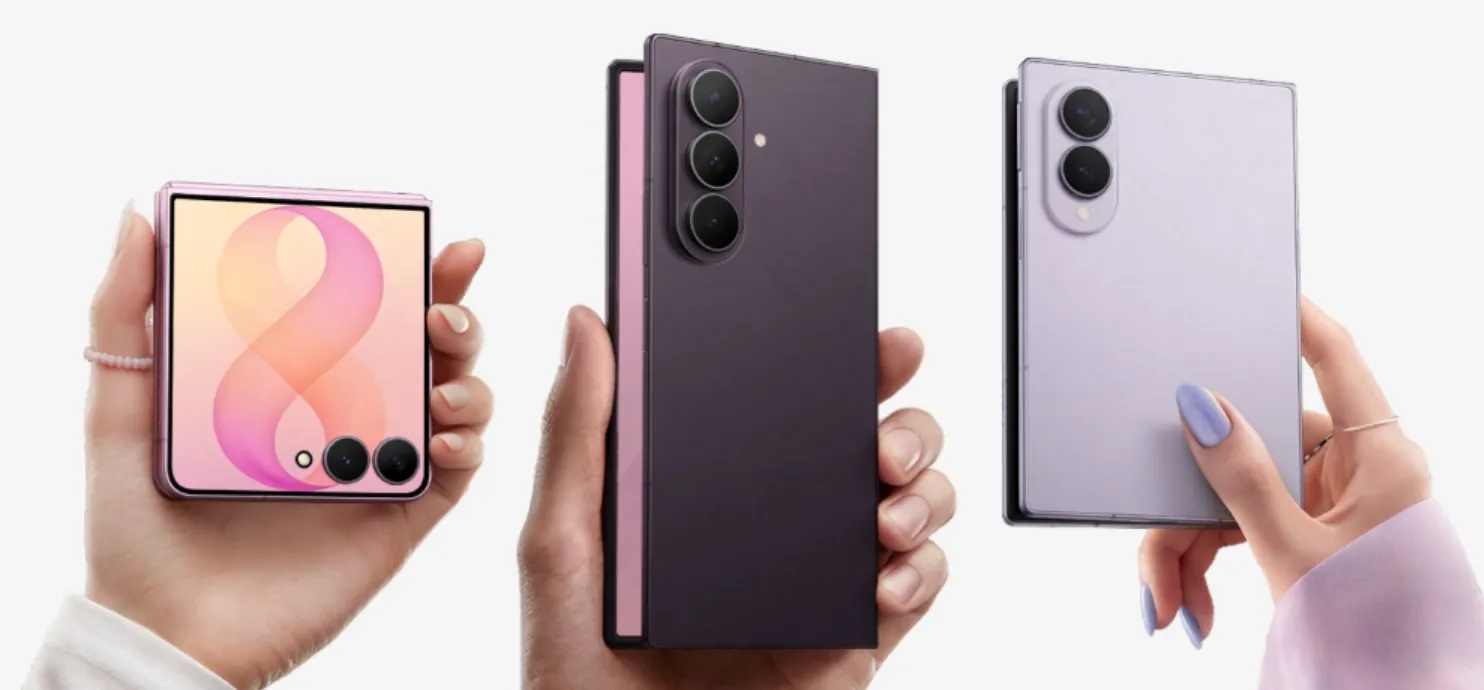
The rollback only works on older Galaxy devices that shipped with Samsung Messages in their stock firmware. On the Galaxy S25, S26, Z Fold 6, Z Fold 7, Z Flip 6, and Z Flip 7, Samsung Messages was never part of the base firmware, so there's no factory version to restore. Getting it running on those phones would require sideloading an older APK, which Samsung does not support, per Android Authority.
Two other things worth knowing. Samsung has confirmed the app is permanently discontinued and any bugs that exist after you roll back will never be fixed. Whatever state the app is in, that's the state it stays in. Also, uninstalling updates or clearing app data in either Samsung Messages or Google Messages does not delete your SMS or MMS history, per Android Authority.
Use the workaround to check, confirm your history is where it needs to be in Google Messages, then switch permanently.
If you use Galaxy watches or tablets
The shutdown creates secondary problems for users with devices connected to their Galaxy phone. Your phone texting continues normally once Google Messages is set as default; the steps below are only for restoring cross-device sync.
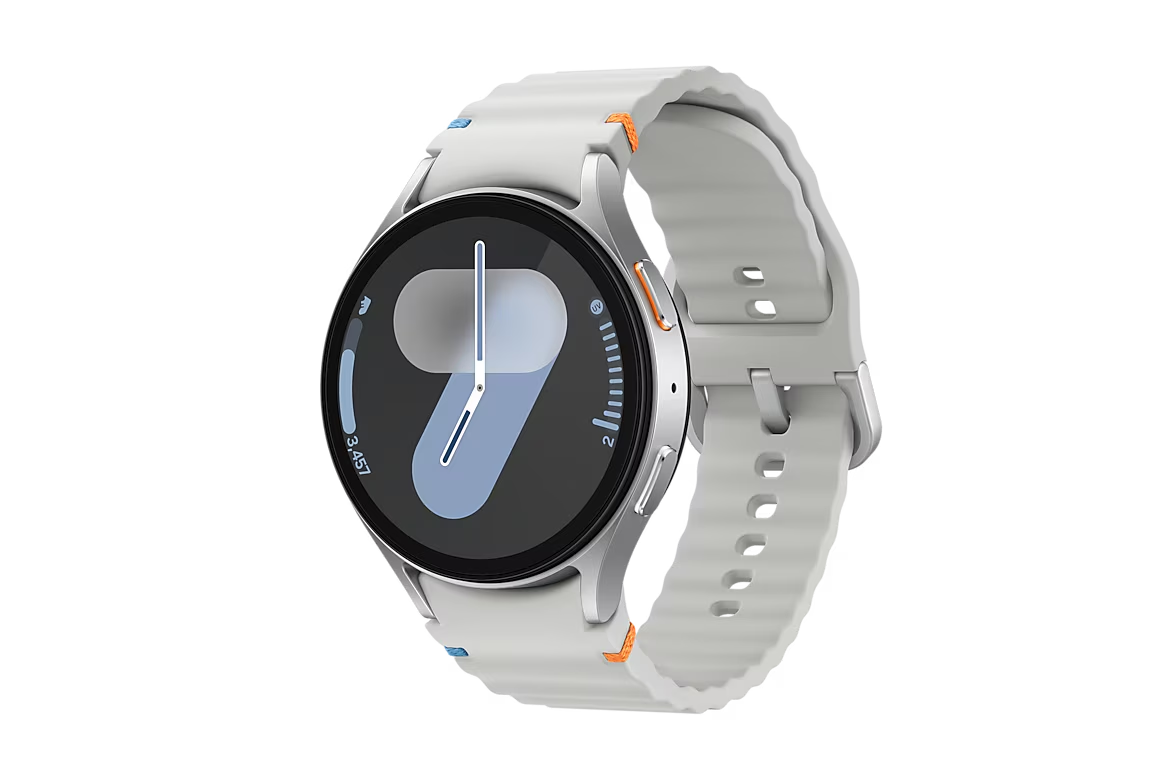
Galaxy Watch 4 and newer (Wear OS): Google Messages works normally on these watches once it's set as default on your phone. Make sure the watch is paired and that Remote connection is enabled in your settings, per Samsung Support. Nothing else is required.
Older Tizen watches (Galaxy Watch 3 and earlier): These devices can't run Google Messages. After the July 6 cutoff, full conversation history is no longer available on the watch, though basic message reading and sending still work, per Samsung Support and Android Police. There's no software fix for this; it's a hardware platform limitation.
Galaxy tablets: Samsung's Message Continuity feature, which let tablets send and receive texts, is disrupted by the shutdown. To restore tablet texting, install Google Messages on your tablet and either sign in with the same Google account used on your phone, or pair the devices with a QR code: open Google Messages on your phone, tap your profile icon, then Device Pairing > Switch to QR pairing, per Samsung Support. One carrier caveat: Call & Text on Other Devices doesn't currently work with Verizon or AT&T phones, so your options may be limited depending on your carrier.
What to do right now
Three situations, three answers:
- Samsung Messages not working and you need texting today: Switch to Google Messages now. Install it, set it as default, let the transfer run. That's the whole job.
- You want to verify old conversations transferred before committing: Use the temporary workaround on eligible older devices, confirm your history is in Google Messages, then switch permanently.
- You use a tablet or older Tizen watch: Follow the extra steps above, and expect limitations on older Tizen hardware that won't be patched.
Samsung Messages discontinued is a permanent state. The direction has been clear since the Galaxy S22 shipped with Google Messages as default in 2022, and the S26 launched without Samsung Messages available to download at all. Yesterday was the last mile of a transition that's been underway for years. For most users, getting to the other side takes about five minutes.


Comments
Be the first, drop a comment!