



![Galaxy Watch 8 40mm Bluetooth Smartwatch, Cushion Design, Quick Button, Sleep Coaching, Now Bar, Running Coach, Energy Score, Silver [US Version, Amazon Exclusive 2Yr Warranty]](https://m.media-amazon.com/images/I/51II1-pAUGL._AC_UY218_.jpg)


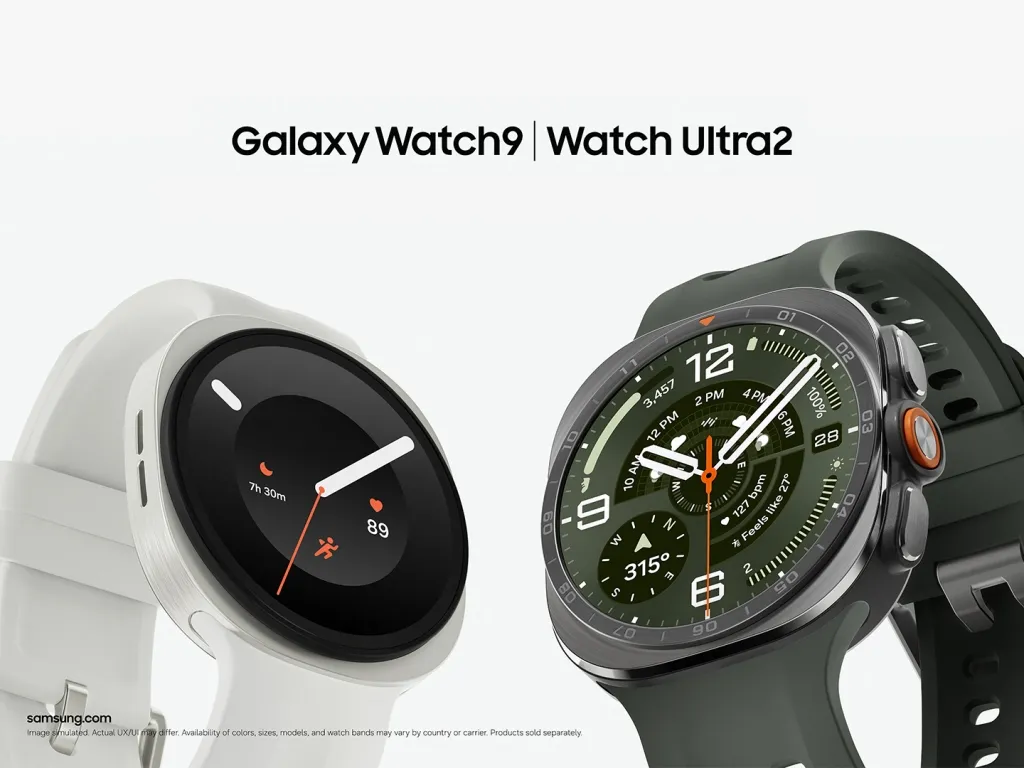
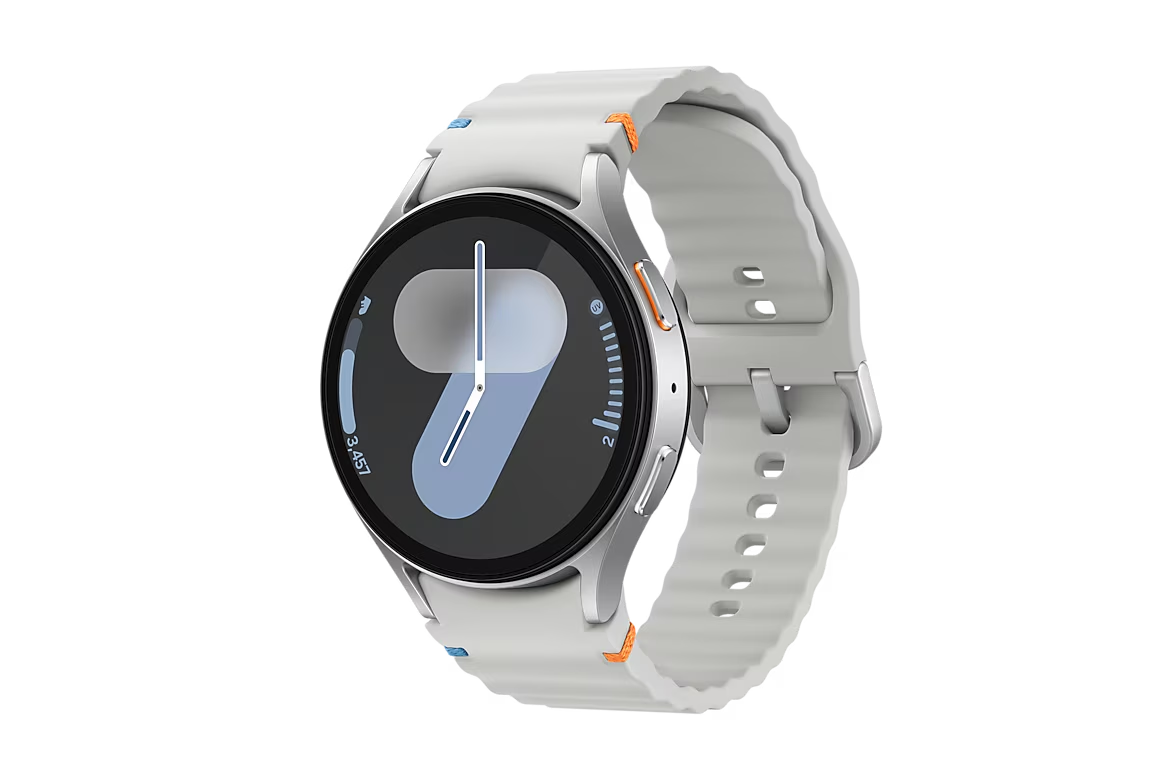
The best time to charge a Samsung Galaxy Watch comes down to timing: pick whichever stretch of your day you can afford to lose tracking data, charge during that window, and make sure whatever charge you end up with covers your next sleep period or workout.
That's a different answer than phone owners get. Samsung's Battery Protection page, which lays out 80% and 85% charge caps, is written for Galaxy phones running One UI 6.1 or later. It doesn't mention Galaxy Watch models at all. Separately, the Galaxy Watch8 series includes a Battery protection option that stops charging at 90% and resumes below 85%, according to Android Authority. Neither data point adds up to a confirmed, watch-wide charging rule.
Match your charging window to what you actually track
While the watch is off your wrist to charge, you're not collecting tracking data. That's the real constraint here, more than any percentage. Figure out which tracking window matters least to you, and charge during it.
Should you charge your Galaxy Watch overnight?
If you don't track sleep, overnight charging is usually the least disruptive option, since you're not wearing the watch anyway. If you do track sleep, overnight charging works against you: you'll wake up with a fully charged watch and a gap in your data where your sleep stages should be. In that case, charge during a daytime block instead — a shower, a commute, a stretch at your desk — so the watch stays on your wrist through the night.
If workouts, GPS, or LTE calling matter more than sleep
Charge in the evening or before bed so the day starts at a higher percentage. If GPS or LTE consistently leaves you with less battery than usual, charge before those sessions rather than waiting to see how the day plays out. Treat a known high-drain activity, a long run, a ride, a full day away from your phone on LTE, as a reason to top up ahead of time.
If both matter, test before you commit
Don't guess at this one. Charging speed and daily drain vary by watch model, which features are running, and how old the battery is. One Galaxy Watch 7 owner reported that a charge from 30% to 100% took about 1 hour and 40 minutes. That's one person's experience on one watch, not a benchmark to plan a routine around.
Here's a simple way to test your own window: note the battery percentage when you first put the watch on the charger, and note it again when you take it off. Track that same window for three or four days in a row, then check the percentage after your longest normal workout and again after a full night of sleep tracking.
If the watch never drops toward empty before your next charging opportunity, the window works. If it does, shift the window earlier or add a short top-up before your highest-drain period. Running this kind of test, rather than copying someone else's schedule, is the most reliable way to extend Samsung Galaxy Watch battery life across regular use.
A couple of habits can stretch whatever charge you land on. One Samsung Members reply suggests turning off features you're not actively using, like Always On Display, Wi-Fi, GPS, NFC, and Bluetooth, when the watch is idle, though the post doesn't quantify how much battery this actually saves. If charging feels unusually slow, check that the watch is centered on a compatible charger and that no foreign or magnetic material is interfering with the charging surface. Samsung also notes that extreme temperatures can slow or stop charging.
What charge limits are actually confirmed
Samsung's published phone battery protection tiers, Basic, Adaptive, and Maximum, apply to Galaxy phones running One UI 6.1 or later. Basic stops charging at 100% and resumes at 95%. Adaptive uses Maximum protection while you sleep before switching back to Basic ahead of your estimated wake time. Maximum caps charging at 80%. On older phone software, Samsung documents an 85% maximum-charge option instead. These are phone settings, not Galaxy Watch instructions.
The Galaxy Watch8 series has a separate Battery protection feature. Android Authority documented the setting on a Galaxy Watch8 Classic: charging stops at 90% and resumes when the battery level falls below 85%. Earlier Galaxy Watch models did not expose the same option in their Battery menu at the time of that report.
A separate community thread shows a Galaxy Watch 6 owner asking about an "80/20 rule" for battery health. One reply claimed a charge-limit toggle exists under Settings > Battery on some devices, set to either 80% or 85%. The original poster searched their own watch and couldn't find it, and the thread ends with a suggestion to search for the setting rather than a confirmed answer. You can check your watch's Battery settings, but this thread doesn't confirm that every model exposes a charge-limit control.
Check your watch's settings once, but don't build a daily routine around finding a cap that may not exist on your model. If you own a Watch 8-series device and do find a 90% limit, weigh whether losing that last 10% of runtime still covers your longest tracking day before turning it on.
Samsung Galaxy Watch charging tips backed by Samsung Members guidance
A shorter list of habits comes from a Samsung Members support post rather than open-ended forum speculation.
Samsung recommends charging the watch before first use or after it has been unused for an extended period.
Use only Samsung-approved chargers, cables, and docks. Samsung warns that unapproved accessories can damage the watch.
Line up the center of the watch's backside with the center of the wireless charger when placing it down, as Samsung's instructions specify.
Keep the watch away from very hot or very cold conditions while charging. Samsung says temperature extremes can shorten battery life and potentially cause damage.
Some Galaxy phones can charge compatible Galaxy Watch models through Wireless PowerShare, but support depends on both devices. Samsung lists several Galaxy S, Note, and foldable phones as PowerShare sources, while watch compatibility varies by generation. Check Samsung's compatibility list for your exact watch before relying on it as a backup charger.
Samsung specifies the phone needs at least 30% battery to share power this way and notes that not all phone models support the feature. That's useful when a normal charging window gets missed and a partial charge is needed before the next tracking period, not something to plan around.
Power saving mode is the other fallback. Turning it on grays out the display, limits performance, and disables Wi-Fi and mobile data; on LTE-capable models it also cuts mobile networks. Only Bluetooth-based calls, messages, and notifications keep working. It's meant to preserve whatever battery remains when a charger isn't available longer than planned, a stopgap rather than a routine to rely on.
Tracking priorities vs. battery health: how to decide
Two separate goals sit underneath all of this, and they don't always point to the same schedule. Tracking continuity favors charging whenever you'd lose the least valuable data, which might mean sitting at 100% for hours if that happens to be your lowest-value window. Samsung's own phone battery documentation notes that keeping a battery at 100% for extended periods can reduce its lifespan, a general lithium-ion point that Samsung hasn't published as watch-specific guidance. Worth knowing that trade-off exists, even without a watch-specific rule to apply it by.
As a quick decision guide:
Sleep tracking matters most: charge during a daytime block, not overnight.
Long GPS sessions or LTE use matter most: charge the evening before, and top up ahead of a known high-drain day.
Both matter equally: pick a daytime window, run the percentage test above for three or four days, and adjust if it doesn't cover your longest workout plus a full night of sleep tracking.
Whichever category fits, check your own watch's Battery settings for a charge limit without assuming one exists just because a forum post mentions it, and stick to Samsung-approved chargers with proper alignment in the meantime. Treat Wireless PowerShare and Power Saving Mode as backups for the days your routine slips, not as the plan itself.




Comments
Be the first, drop a comment!