





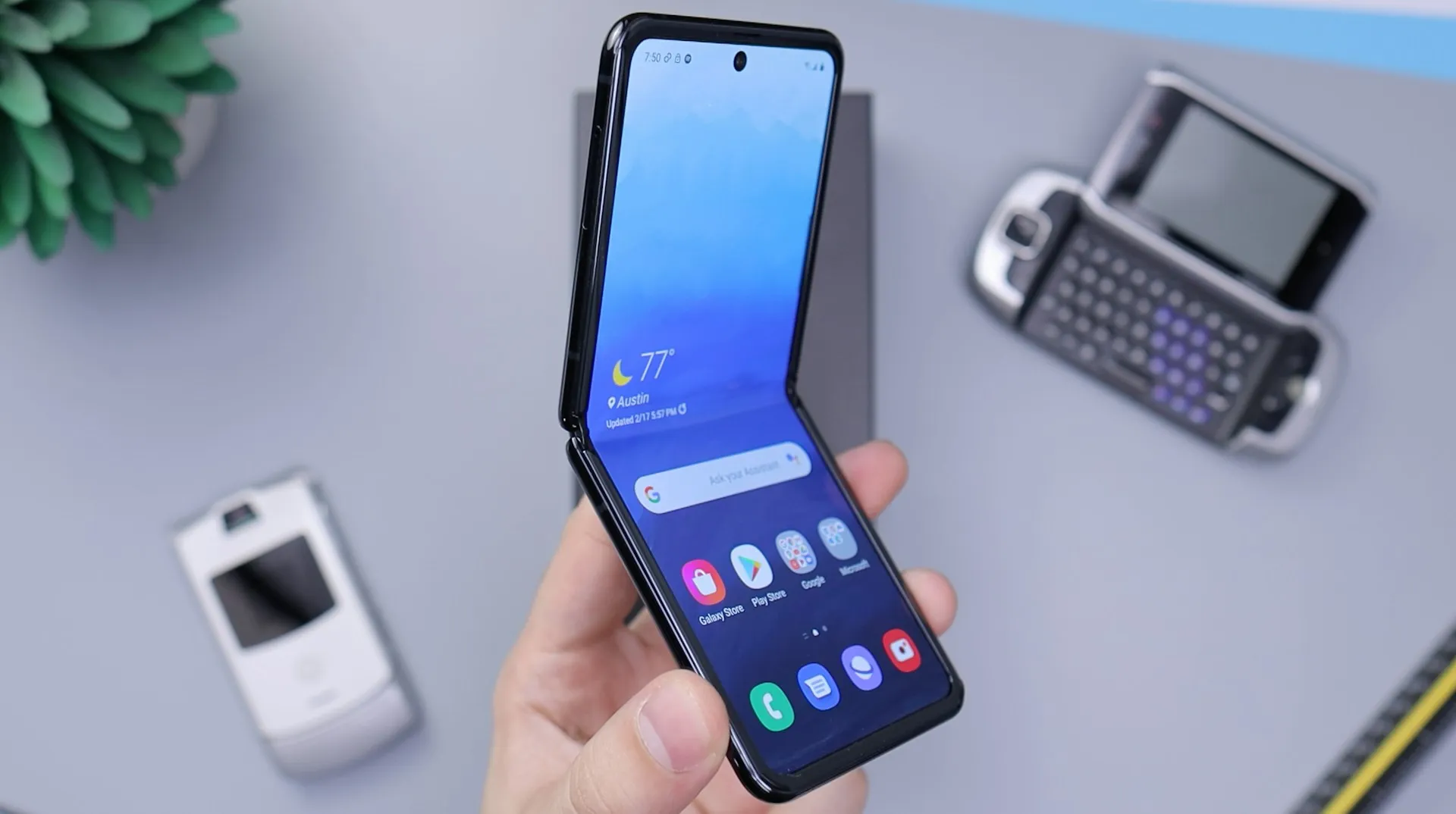
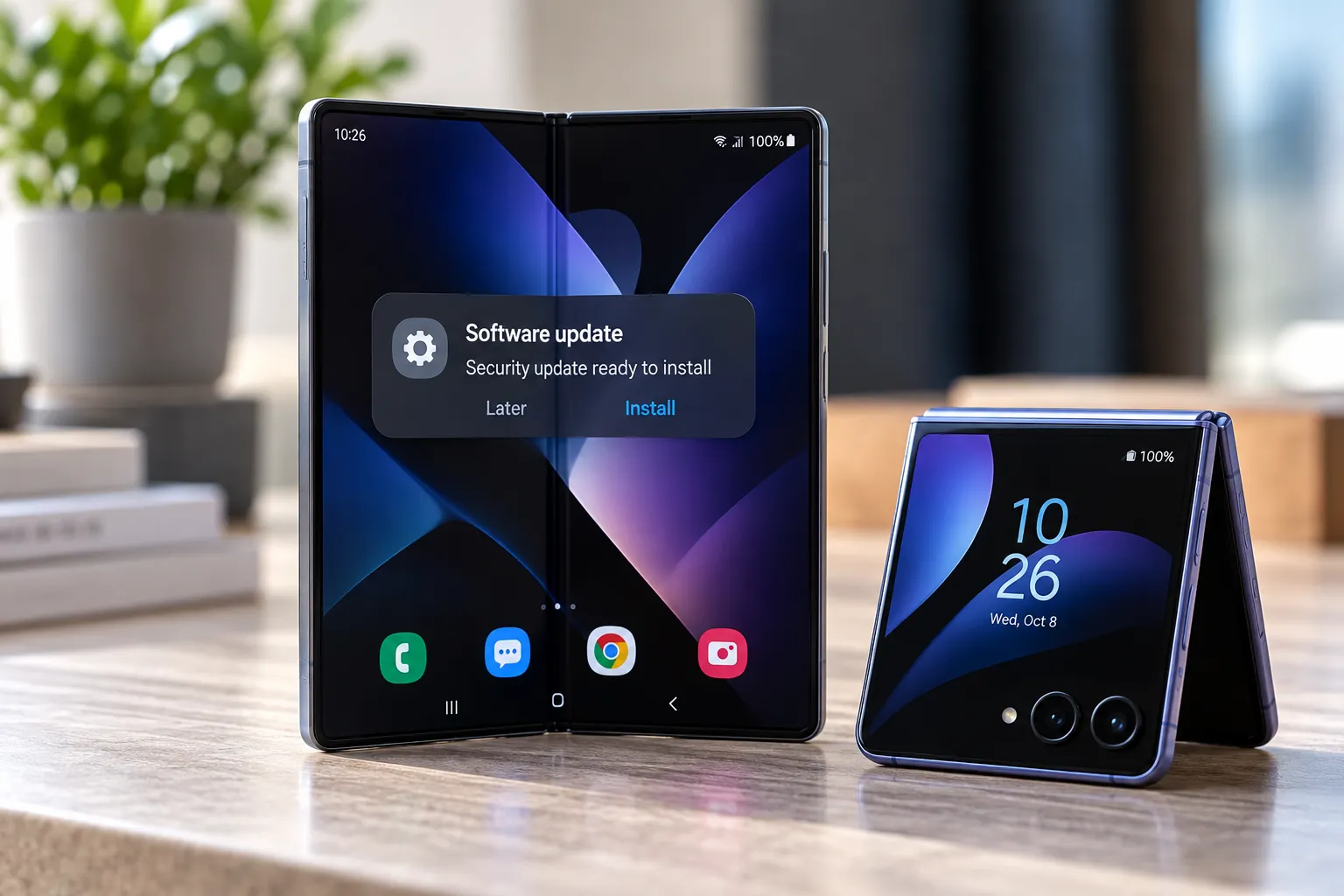
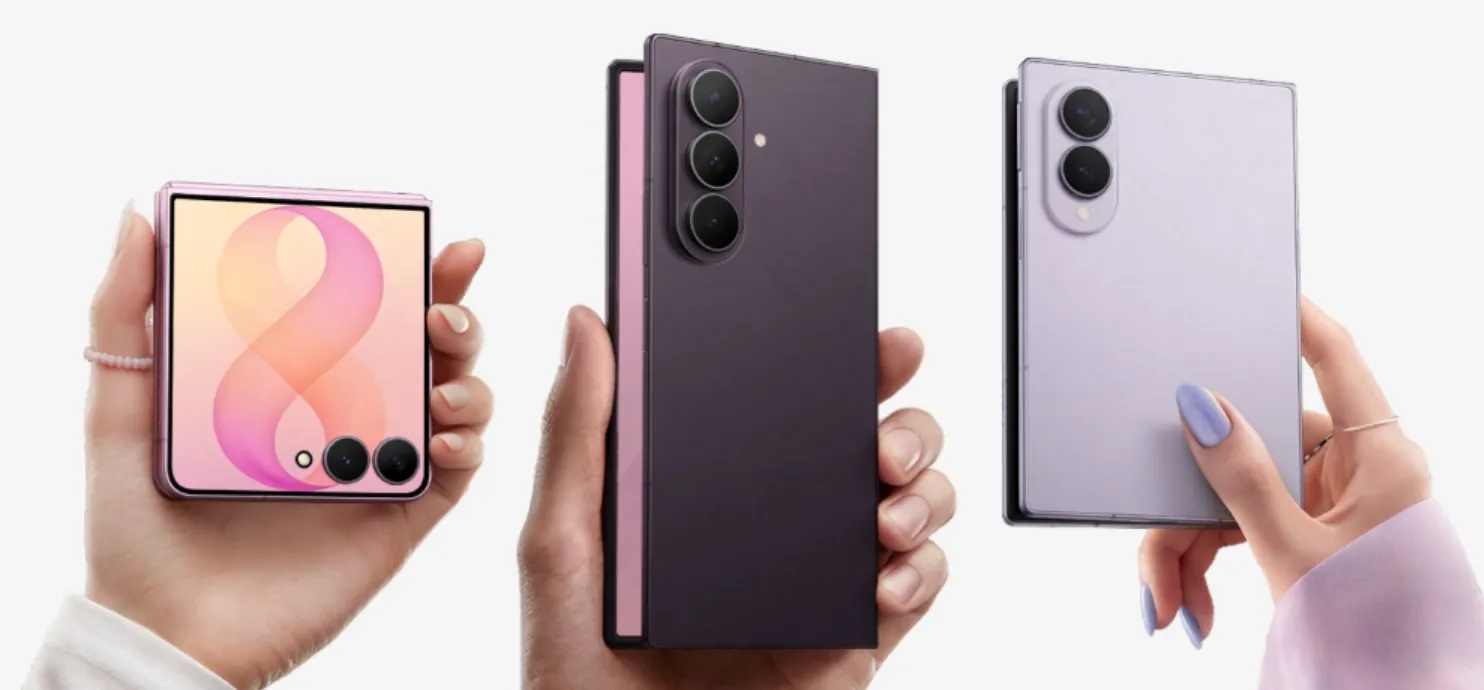
The Galaxy Z Flip 8's outer FlexWindow does more than preview a selfie. Turn on Mirror View and the cover screen becomes a mirror-like, real-time reflection that Samsung says can run at up to 120 fps, with zoom and edge lighting available for a closer look.
Mirror View isn't part of the standard camera interface by default. It works through Samsung's Camera Assistant companion app, which is why the feature can be easy to miss even on a phone that supports it.
Samsung's current Galaxy Z Flip 8 product page confirms that Mirror View requires Android 17 and One UI 9 or later, and as of August 2026 is supported only on the Galaxy Z Flip 8. Availability can vary by country or region.
Here's how to install Camera Assistant, enable Mirror View, launch it quickly, and use its controls.
Before you start: Galaxy Z Flip 8 Mirror View requirements
Check these three things before looking for the setting:
Device: Galaxy Z Flip 8
Software: Android 17 with One UI 9 or later
App: Samsung Camera Assistant
Samsung's current Galaxy Store listing for Camera Assistant specifically lists Mirror View Feature Added (Z Flip8 Exclusive).
The Flip 8 itself ships with Android 17 and One UI 9, so a new phone should already meet the software requirement unless something has changed with its software installation.
Camera Assistant may not already be installed, though.
If Mirror View is missing despite meeting these requirements, check whether the latest version of Camera Assistant is available in your region before assuming there's a problem with the phone.
What is Mirror View?
Mirror View turns the Z Flip 8's FlexWindow into a digital pocket mirror.
Samsung describes it as a real-time, mirror-like view running at up to 120 fps. You can zoom into part of the image and turn on edge lighting to make the reflection easier to see.
Unlike the ordinary FlexWindow camera preview, Mirror View is intended for checking your appearance rather than framing and taking a normal selfie.
Samsung UK mobile expert Kadesh describes it as a useful option for checking your appearance before taking a photo or heading out. Samsung's UK guide also specifically directs users to Camera Assistant to find the feature.
How to install Camera Assistant
If Camera Assistant isn't already installed:
Unfold the Galaxy Z Flip 8.
Open the Camera app.
Tap Quick Controls, represented by the four-dot button.
Tap Settings.
Scroll down until you see Camera Assistant.
Tap the download button next to it.
You can also install Camera Assistant directly through the Galaxy Store.
SamMobile's hands-on guide confirms both installation methods.
Camera Assistant is a Samsung app that adds controls beyond those included in the normal Camera settings.
How to turn on Galaxy Z Flip 8 Mirror View
Once Camera Assistant is installed:
Open Camera Assistant.
Scroll through the available options.
Find Mirror View.
Turn the toggle on.
That's all that's required to enable the feature.
Tap the Mirror View entry itself rather than only the toggle if you want to configure its quick-launch options.
Those additional settings let you assign Mirror View to the side button or create a lock-screen shortcut.
Three ways to launch Mirror View
Once the feature is enabled, you can open it in three ways.
Use a lock-screen shortcut
Camera Assistant lets you assign Mirror View as a lock-screen shortcut.
Once configured, you can launch the digital mirror without navigating through the full Camera interface.
Double-press the side button
Mirror View can also be assigned to the side button.
Once configured, double-pressing the button provides another quick way to open it.
Open it through Camera
If you don't want to create a shortcut:
Open Camera.
Open Quick Controls.
Tap Mirror View.
The lock-screen and side-button shortcuts are optional. Mirror View still works through the Camera app without either one.
If Mirror View doesn't appear
Start by confirming the phone and software.
Samsung currently lists Mirror View as a Galaxy Z Flip 8-exclusive Camera Assistant feature requiring Android 17 and One UI 9 or later.
Next, update Camera Assistant through the Galaxy Store.
If Camera Assistant itself is missing, install it through the Camera settings or directly from the Galaxy Store.
Samsung also notes that availability may vary by country or region.
If the Z Flip 8 is on current software and the latest Camera Assistant still doesn't show Mirror View, check Samsung's support information for your region before resetting the phone or assuming there is a hardware problem.
How to use the Galaxy Z Flip 8 cover screen as a mirror
Once Mirror View is running, the FlexWindow provides several controls beyond simply showing your reflection.
Freeze the reflection
Tap the circle button to freeze the current frame.
This can make it easier to inspect one angle without continuing to move the phone or your head.
Tap again when you're ready to return to the live reflection.
Turn on edge lighting
Tap the brightness control to add light around the edges of the FlexWindow.
Samsung describes the feature as edge lighting for added clarity. SamMobile refers to the effect as a ring light around the cover screen.
It can be useful when checking your reflection in a darker environment.
Samsung's description of Mirror View working well in low light is a manufacturer claim rather than an independent measurement, so actual results can vary with ambient lighting.
Zoom in
Double-tap or pinch the FlexWindow to zoom.
That gives you a closer look at a smaller area without physically moving the phone closer.
Pinch back out when you're finished.
Use Mirror View hands-free in Flex Mode
Mirror View also works with the Z Flip 8 partially folded.
Launch Mirror View, open the phone into Flex Mode, and place it on a stable surface.
The FlexWindow remains visible while the phone supports itself, effectively turning the Flip 8 into a freestanding digital mirror.
That can be useful when getting ready at a desk, counter, or other flat surface because you don't need to hold the phone continuously.
Mirror View vs. the regular camera preview
The two features can look similar because both use the FlexWindow.
The regular FlexWindow camera preview is designed around photography. It helps you frame a selfie using the phone's rear cameras and provides controls associated with taking the picture.
Mirror View is designed primarily for looking at yourself.
It adds mirror-specific controls such as:
Freeze frame
Edge lighting
Double-tap or pinch-to-zoom
Hands-free use in Flex Mode
If you're preparing to take a selfie, Mirror View can be used first to check your appearance before switching back to the camera.
Mirror View vs. Flip Shot
Mirror View and Flip Shot are also separate Galaxy Z Flip 8 features.
Mirror View turns the FlexWindow into a live digital mirror so you can check your appearance.
Flip Shot replaces the normal FlexWindow camera preview with something you've customized.
Samsung's Flip 8 documentation says Flip Shot can display:
A photo
An animation or GIF
A drawing
Text
That customized content appears on the cover screen while you're taking a mirror selfie.
For example, someone photographing themselves in a physical mirror can have a custom image or message displayed on the phone's FlexWindow, making that display part of the resulting mirror selfie.
It isn't the same thing as digitally placing a new background behind the person in the photo.
That distinction makes the two features easier to understand:
Mirror View: Look at yourself on the FlexWindow.
Flip Shot: Customize what the FlexWindow displays while you take a mirror selfie.
They can be used for different stages of the same photo setup, but one doesn't replace the other.
Does Mirror View take photos?
Mirror View is primarily a viewing feature rather than a replacement for the normal Camera shooting interface.
The circle control freezes the reflection so you can inspect it. It should not be confused with the normal camera shutter.
When you're ready to take an actual photo, use the Flip 8's regular camera features, including FlexCam and the FlexWindow camera preview.
Samsung's official launch material describes Mirror View as a tool for quick appearance checks before taking a photo or heading out.
What to do now
Start by checking whether Camera Assistant is installed.
If it isn't, open:
Camera > Quick Controls > Settings > Camera Assistant
Install the app, open it, and turn on Mirror View.
Use the Camera app's Quick Controls to launch it normally, or configure the lock-screen or side-button shortcut if you want faster access.
Once Mirror View is open, use the circle button to freeze the view, the brightness control for edge lighting, and double-tap or pinch gestures to zoom.
And keep Mirror View separate from Flip Shot. Mirror View is the digital mirror. Flip Shot changes what your FlexWindow displays when you're taking a mirror selfie.


Comments
Be the first, drop a comment!