





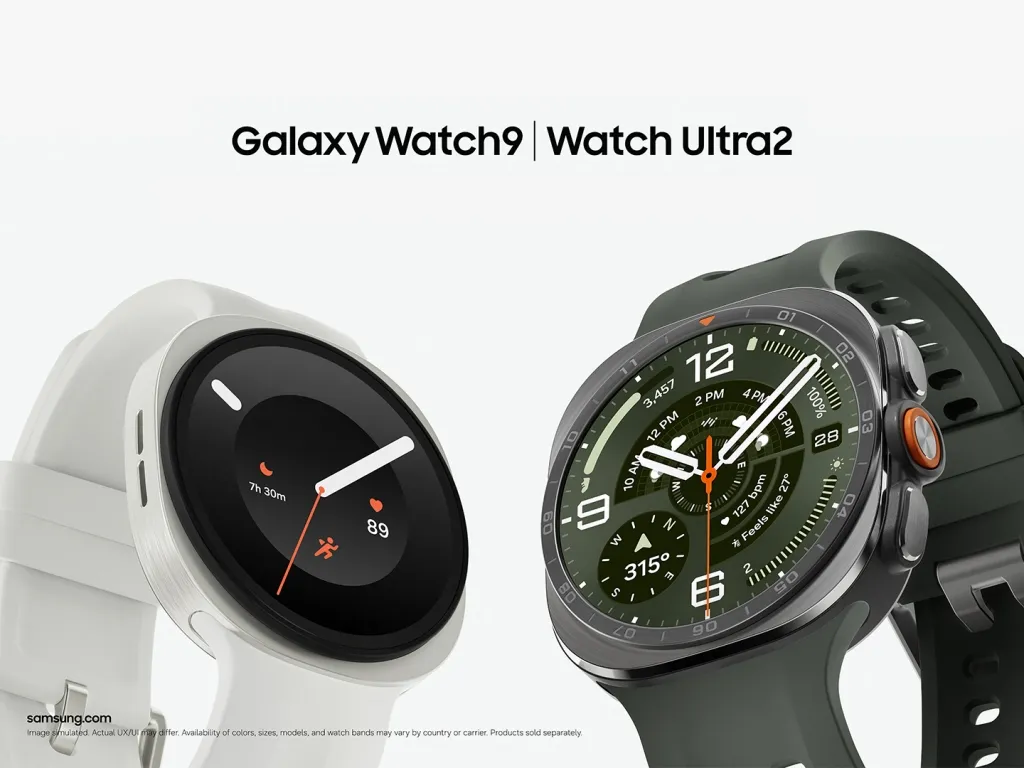
Galaxy Watch 9 and Watch Ultra 2 owners have spent the past two months watching full charges stretch to two, three, even four hours, well beyond Samsung's advertised charging times for the Watch9 and the Watch Ultra2 in fast-charging mode. Samsung separately lists a 190-minute normal-charge time for the Ultra2.
The watches hit store shelves last August 7, 2026, and the first complaints showed up almost immediately after. That timing tells you how fast word spread online. Samsung has since published model-specific charging guidance, including compatible charger models, power-adapter requirements, and expected charging times.
If you're trying to figure out how to fix Galaxy Watch 9 slow charging, the first move is naming which pattern you're actually dealing with. Some owners get an outright charger rejection or a persistent "slow charging" alert the moment they dock the watch. Others watch a charge start at a normal pace, then fade substantially before it reaches 100%, with no alert at all. Those are two different problems with two different fixes:
Immediate rejection or a persistent alert: test the included puck and cable on a clean surface, update software, then contact Samsung if the alert won't clear.
Normal start that fades gradually with no alert: run a controlled comparison charge with and without a fan.
What Galaxy Watch 9 owners are actually reporting
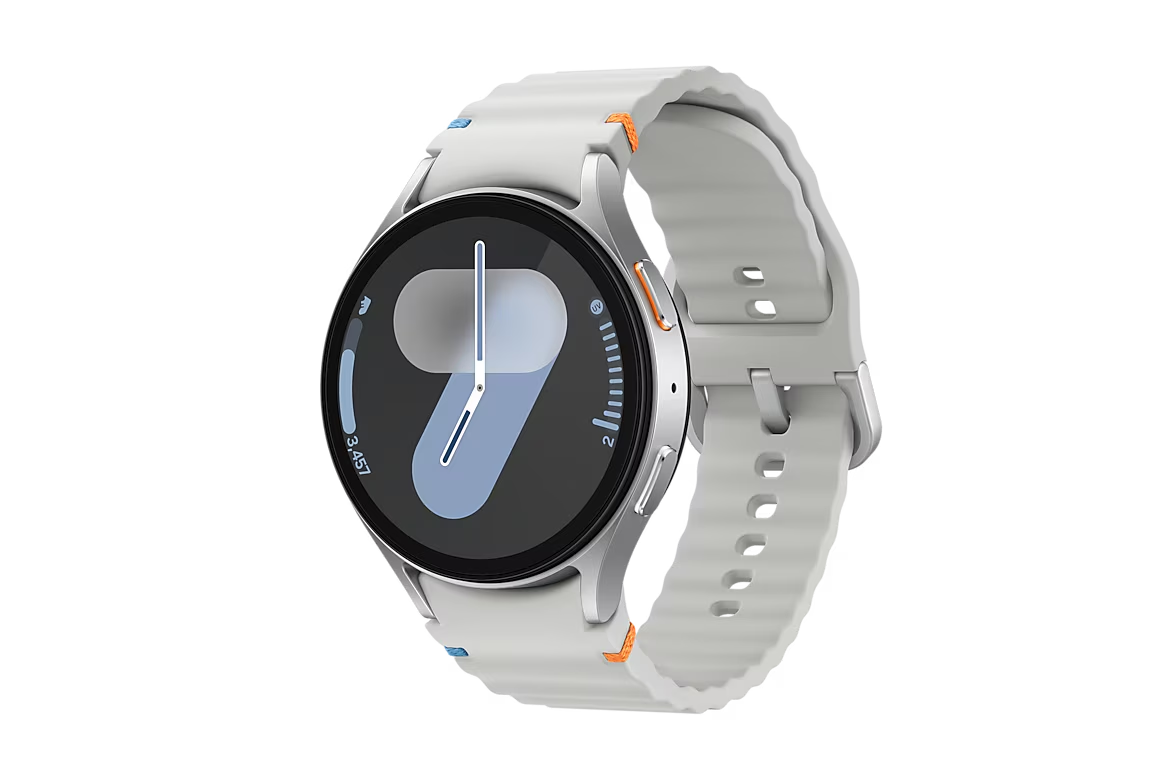
Samsung's own figures set the baseline: a full charge in 80 minutes for the 40mm Watch9 and 90 minutes for the 44mm Watch9. For the Watch Ultra2, Samsung lists 90 minutes with fast charging and 190 minutes with normal charging.
Owner reports run well past that mark. One 40mm Watch 9 owner clocked a full cycle at "well over two hours." A Watch Ultra 2 owner titled a Reddit thread "Watch Ultra2 casually taking 4 HOURS to charge." A 44mm owner said the watch took more than two hours just to climb past 90%, then stalled there with Battery Protection confirmed off.
One owner went further and logged wattage with a power meter. Charging held near 5.5W when the watch was at 15% battery, then dropped to 3.5W or lower while the watch was still only about half charged. That pattern resembles thermal throttling, but it's one person's own measurement taken with consumer gear, not a verified cause.
What the reporting doesn't establish matters just as much as what it does. Nothing here shows how many watches are affected, whether the problem tracks to a specific software build or production batch, or whether it behaves the same way across regions. Treat this as evidence of an owner-reported problem, not confirmation of a defect running through every Watch 9 and Ultra 2 in circulation.
Check the included charger and placement first
Before suspecting heat or a defective unit, rule out the boring stuff. Use the correct Samsung charging puck—EP-OL300 for the Watch9 or EP-OL715 for the Watch Ultra2—with a compatible power adapter. Remove protective covers and keep the charging surfaces clean, dry, and properly aligned.
Check for a pending update on the watch itself and in the Galaxy Wearable app on your phone; Samsung has historically pushed watch firmware through both channels. Run one full charge cycle after updating before you touch anything else.
Nothing in the reporting cited here confirms that cleaning, realignment, or a software update actually solved the problem for a specific owner. These are standard ways to rule out setup and software variables, not a documented fix, so treat this step as a first pass rather than a guaranteed solution. If it works, you're done. If your charger still gets rejected or throws a persistent alert afterward, move on. A fan won't touch that kind of problem.
When an alert points to compatibility, not heat
A separate cluster of reports has nothing to do with gradual slowdown. Several posts on Samsung's US community forum describe Watch 8 chargers and third-party docks, despite being marketed as backward compatible, triggering "slow charging" alerts or getting rejected outright on the Watch 9 and Watch Ultra 2. One owner even found that an older Watch 6 puck charged faster than the cable included in the box, a result that doesn't line up with a heat-based explanation and points instead toward a possible firmware handshake issue.
PhoneArena said it contacted Samsung about the broader slow-charging issue and raised the possibility that a firmware update could resolve it. That outreach hadn't produced a public response as of that report, which is reason enough to check Samsung's current support channels before treating any workaround as a permanent fix.
If your charger gets rejected or flagged after you've already tested the included puck and cable on a clean, open surface, report that pattern to Samsung directly. Testing with the included accessories first helps separate a compatibility problem from a fault in the watch itself, though it doesn't rule the watch out completely.
Recognize a pattern worth testing with airflow, not a confirmed diagnosis
The pattern worth testing with a fan looks different from a compatibility alert. Charging starts at a normal pace and visibly slows as the session goes on, with no rejection, no alert, and no disconnect, closer to the wattage drop logged above than to the alert-based problems described earlier.
Two data points fuel the suspicion that heat is behind it. The same owner who tracked the wattage drop also reported that pointing a desk fan directly at the watch cut charging time noticeably. Some owners have started describing this informally as Galaxy Watch 9 charging overheating, but neither outlet's reporting confirms thermal throttling as the actual cause, and Samsung hasn't weighed in either way.
The most dramatic test, and the least practical to copy, came from that same owner: they glued the charging puck to a metal plate and set it on ice, cutting a full charge to 1 hour 7 minutes versus more than two hours without cooling.
For broader context, not Watch 9 data specifically, one actively cooled Qi2 phone charger kept a Galaxy S25 Edge's battery 6 to 8°F cooler on average than charging with no airflow at all. That shows airflow can meaningfully reduce wireless-charging heat in principle. It says nothing specific about what's happening inside a Galaxy Watch 9.
None of this proves thermal throttling causes the slow charging on the Watch 9 or Watch Ultra 2. A gradual slowdown paired with a temperature-sensitive anecdote is reason enough to test whether airflow helps your unit, nothing more.
A faster charge with a fan running would show the workaround helps, not confirm what caused the slowdown in the first place. And to be clear, the sources here describe a desk-fan experiment, not an official Samsung accessory. Android Authority reported on October 13 that a user had designed a 3D-printed, fan-cooled charging cradle that reduced a Watch9 charging session from 2 hours 10 minutes to 1 hour 15 minutes.
How to fix Galaxy Watch 9 slow charging when it slows down mid-charge
A fan can lower the ambient temperature around the charging puck. It can't tell you whether the watch is genuinely overheating or whether something in Samsung's charging controls is misbehaving; it only shows whether less heat correlates with a faster charge on your specific unit. Treat this as a comparison test, not a confirmed repair, and check Samsung's official charging and battery-safety guidance before leaving any charging setup unattended around heat, moisture, or an unstable surface. Skipping the ice-and-adhesive method above doesn't automatically make a desk-fan setup risk-free; it's just a less extreme variable to introduce.
Set the puck on a stable, dry, open surface that keeps it from sliding. Skip adhesives, ice, or anything enclosed. Leave the cable with some slack so airflow or vibration is less likely to nudge the watch out of alignment.
Position a small USB-powered fan nearby, aimed at the puck-and-watch contact point, on the same open surface rather than inside a drawer or walled stand. Keep it on a low setting and far enough away that it doesn't shift the watch's position.
Run a baseline charge with the fan off, starting from a known battery percentage, display off, watch otherwise idle. Note the starting percentage, the room's general temperature, and whether the watch was recently worn or warm from use, since any of those can skew the comparison.
Run a second charge with the fan on, from the same starting percentage and under similar ambient conditions.
Compare the results. If the two runs differ noticeably, run at least one more matched trial in each condition before drawing a conclusion.
Track what you can actually observe:
Run
Starting %
Fan setting
Room conditions
Total time to full
Stall/slowdown %
Alert shown?
Baseline (fan off)
Off
Cooled (fan on)
Low
An inline USB-C power meter can add wattage readings if you own one, but treat any reading as charger-side context, not a direct measurement of what's reaching the battery. Don't walk away for long stretches during the test. A puck or watch that shifts on an unstable surface can cause intermittent charging that looks like a slowdown but is really a connection problem.
Stop immediately if anything feels dangerously hot. Unusual heat, an odd smell, swelling, smoke, or repeated disconnections all point to a hardware issue a fan won't fix, and all of them are reasons to contact Samsung rather than keep experimenting.
When to stop testing and contact Samsung
Escalate if charging remains substantially slower than Samsung's published time for your model and charging mode after checking charger and adapter compatibility. For the Ultra2, Samsung lists 90 minutes for fast charging but 190 minutes for normal charging.
Also escalate if charging stalls before 100% with Battery Protection off, as one 44mm owner reported while stuck above 90%; if you keep getting alerts or rejections no matter which charger you try, or if the fan test shows no meaningful improvement over baseline.
A problem that persists after basic troubleshooting and a fair airflow test may just be a defective unit or puck, not something more testing will resolve. Before contacting support, run the available Samsung Members diagnostics and record your watch model and size, charger model, power adapter, software versions, charging time, and any error messages. Save screenshots or photos of any alert message and your charging setup. Specific records give a support rep something to act on instead of a general complaint.
Start with the included puck on a clean, updated setup. If your symptom matches an alert or rejection, skip the fan entirely and send Samsung that documentation now. If it matches a gradual slowdown, run the baseline-versus-cooled comparison above before changing your routine, and let those numbers, not the ice-pack anecdote that inspired them, decide whether airflow earns a permanent spot next to your charger.



Comments
Be the first, drop a comment!